How to back up an audio recorder card on Mac
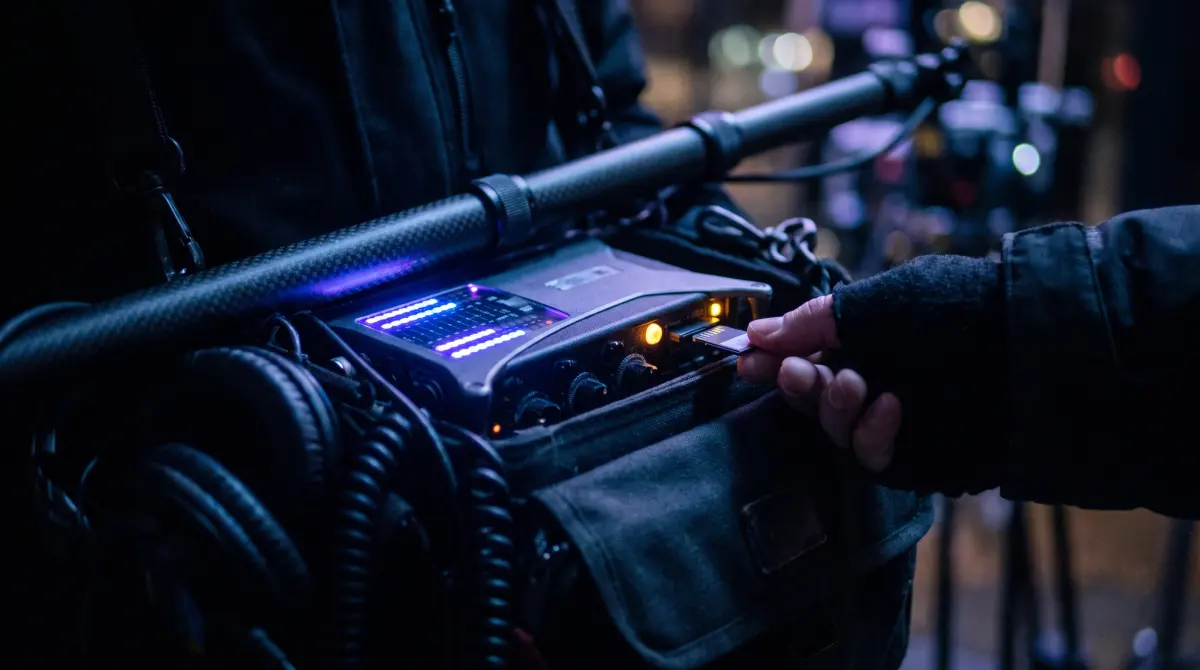
Copsy — a free Mac camera-offload app — backs up production sound cards the same way it backs up video. Drop in the SD or CFexpress card from a Sound Devices, Zoom or Tascam field recorder and Copsy detects it as an audio source, copies the BWF/WAV files to your drive and to Google Drive or Dropbox in the same offload, verifies every file with ASC-MHL checksums, and pings you on Telegram when it's done.
Sound is the one track you can never re-shoot in the edit. Verify it on offload instead of dragging it in Finder, and you can reformat the card knowing every take copied bit-for-bit.
Download Copsy for Mac → · macOS 13+ · no account needed
Production sound cards deserve the same care as picture
Field recorders from Sound Devices (the MixPre and Scorpio families), Zoom (the F and H series) and Tascam (the DR and Portacapture lines) record to SD/SDHC/SDXC cards — and the higher-end multitrack bodies to CFexpress as well. Most write broadcast-standard BWF (Broadcast Wave) files: ordinary WAV audio with extra metadata baked in. Scene, take, track names, notes and timecode travel inside the file as BWF and iXML metadata, which is exactly what lets the editor sync sound to picture later.
A sound card is small, which is the trap. It's tempting to just drag it to a drive in Finder and move on. But a small drag-and-drop copy can silently drop a file or flip a bit, and on a short WAV the damage may not surface until someone opens that exact take in the cut, long after the card was wiped and reused. Picture gets babied with verified offload tools. Sound too often gets a Finder drag, and it shouldn't.
What a verified audio offload actually protects
- The only copy. Until it's backed up, the card holds the sole copy of your dialogue and synced takes.
- The metadata. BWF/iXML scene, take and timecode info must arrive intact for the sync to work in post.
- Silent corruption. A checksum catches a bad copy before you format the card. Finder will happily report a broken copy as "done."
How Copsy handles an audio card
Copsy detects cards by their content, not by a label you have to set. When it sees a card full of BWF/WAV takes laid out the way a field recorder writes them, it treats it as an audio source and runs the same four-step offload it uses for any camera card:
- Insert the card. Plug the recorder's SD or CFexpress card into your Mac; Copsy recognizes it as an audio source.
- Pick destinations. An external drive, plus optionally Google Drive or Dropbox — all copied in the same offload.
- Copy & verify. Copsy copies the whole card, organizes it by date and source, and verifies every file with ASC-MHL checksums. Your folders and embedded BWF/iXML metadata are preserved as-is — nothing is transcoded or rewritten.
- Get pinged. A Telegram message confirms the sound card finished and verified, so you can reformat with confidence.
Sound and picture in one verified pass
On most jobs the sound card lands on the same cart as the camera cards. Because Copsy auto-detects each card's source, you can run a Sound Devices card and a Sony, ARRI, RED, Blackmagic, Canon or drone card through the same workflow and have both organized by date and source on the same drive. One offload routine covers both departments, both checksum-verified.
That parallel copy to Google Drive or Dropbox matters most for audio: a single sound card represents a whole day of dialogue, and a cloud copy made during the offload means an off-site backup exists before the drive even leaves set. That gets you a real 3-2-1 backup on the sound files without a second manual step.
Copsy for audio offload at a glance
| Task | Copsy | Finder drag-and-drop |
|---|---|---|
| Price | FREE | FREE |
| Detects a field-recorder card as an audio source | ✓ | — |
| Verifies every BWF/WAV with ASC-MHL checksums | ✓ | no verification |
| Preserves folders + BWF/iXML metadata | ✓ | ✓ (if copy succeeds) |
| Copies to a drive AND cloud in the same offload | ✓ | — |
| Organizes by date + source | ✓ | manual |
| Telegram notification when done | ✓ | — |
| Catches a corrupt copy before you reformat | ✓ | ✗ |
Specific recorder models, media types and folder layouts vary by device and firmware — details above were last verified in June 2026. Copsy treats any card as a verified copy job; check your recorder's manual for its exact file structure.
A few honest caveats
Good to know
- Copsy verifies and backs up — it does not rename, re-clock or rewrite BWF metadata. Use your sound-report tool for that; Copsy's job is getting the files copied and proven intact.
- It's macOS 13+ only for now. If you offload on Windows, this isn't your tool yet.
- Copsy copies what's on the card. It can't recover takes the recorder never finished writing, so always stop recording cleanly before ejecting.
Frequently asked questions
Offload your sound card with proof it copied
Copsy — a free Mac camera-offload app. Verified BWF/WAV copies to a drive and the cloud, nothing lost.
Download Copsy for Mac