How to back up a Blackmagic card on Mac
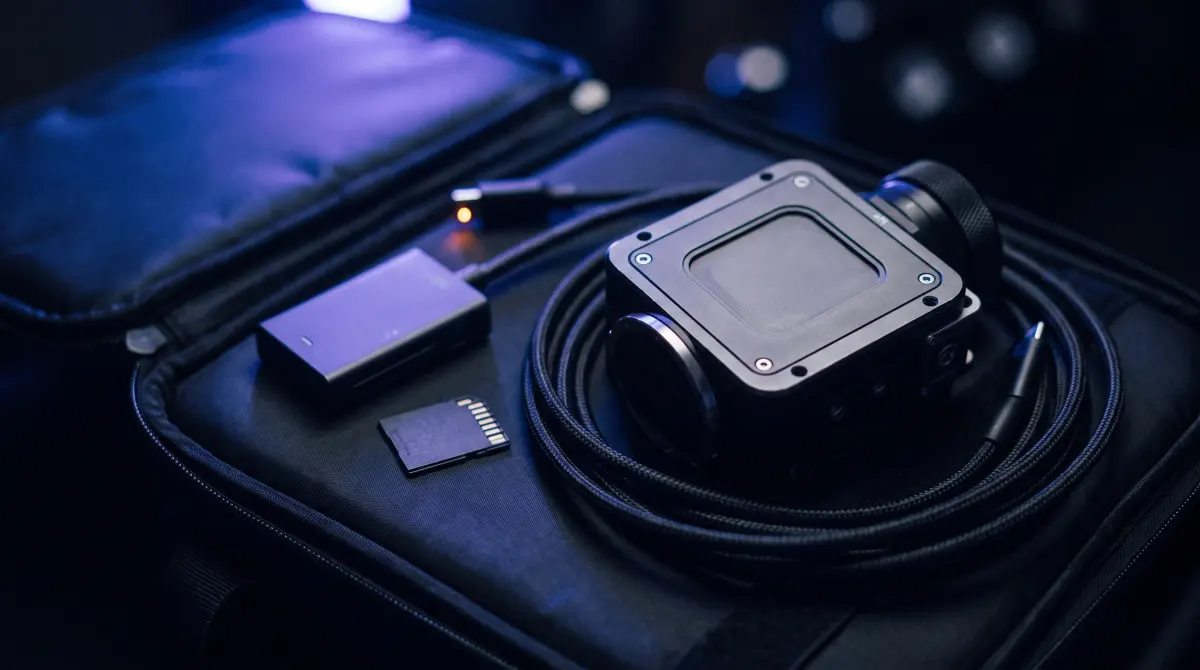
Copsy, a free Mac camera-offload app, is the fastest safe way to back up a Blackmagic card. Plug in the CFast, CFexpress or SD card via a reader, or the USB-C SSD you recorded to, and Copsy auto-detects it as a Blackmagic source, copies every Blackmagic RAW (.braw) or ProRes clip to your drive and optionally Google Drive or Dropbox in the same offload, then verifies each file with ASC-MHL checksums and pings you on Telegram when it's done.
The key idea: don't just drag-and-drop in Finder. A verified copy is the only copy you can trust before you reformat the card. Copsy does that part free, with no card limit and no signup.
Download Copsy for Mac → · macOS 13+ · no account needed
What's on a Blackmagic card
Blackmagic cameras (the Pocket Cinema Camera line, URSA, PYXIS and friends) record to a few different media depending on the body: CFast 2.0, CFexpress Type B, high-speed UHS-II SD cards, and (on most models) directly to an external USB-C SSD plugged into the camera. Whatever the media, the clips are typically Blackmagic RAW (.braw) or Apple ProRes, often alongside small sidecar files.
For an offload tool, the codec and the card type barely matter. Copsy treats the volume as data. It copies every byte exactly and proves the copy is intact with a checksum. So a 12:1 BRAW card and a ProRes HQ SSD are handled the same safe way.
Before you reformat — the one rule
Never reformat a Blackmagic card until you have at least one verified copy (ideally two, in different places). "It looks like it copied" is not the same as "every file passed a checksum." Copsy makes that distinction the whole point of the offload.
How to offload a Blackmagic card with Copsy
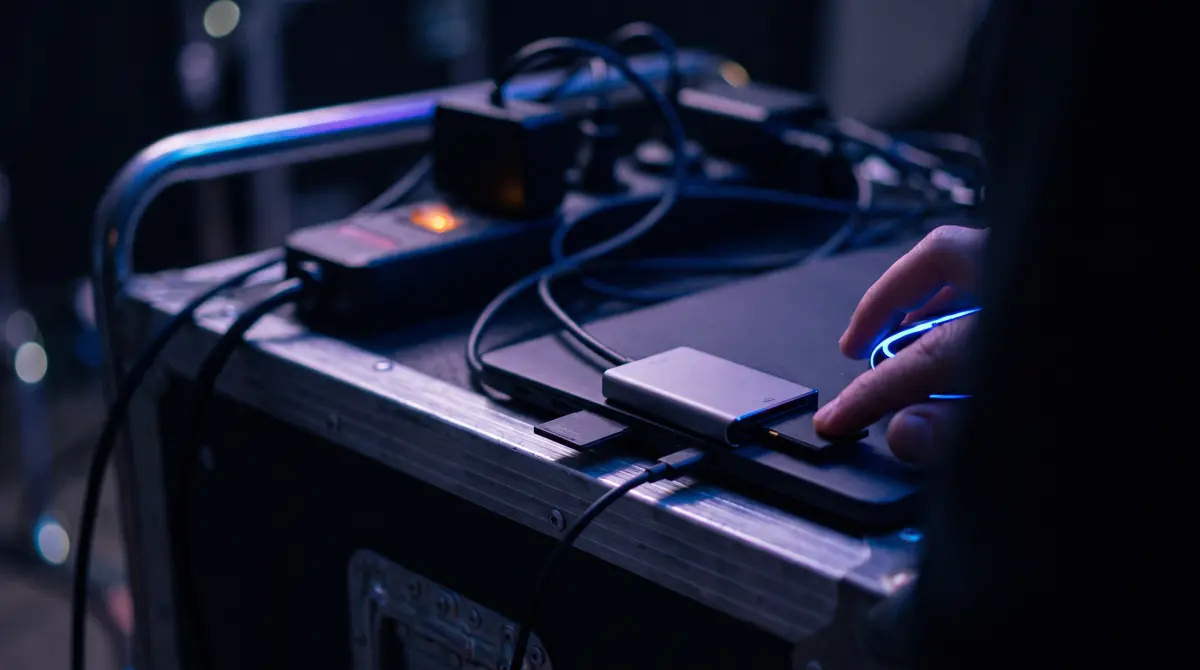
- Connect the card. Use a CFast / CFexpress / SD reader, or plug in the USB-C SSD you recorded to. Copsy detects it by content and flags it as a Blackmagic source.
- Pick destinations. Choose an external drive as your main backup, then optionally add Google Drive or Dropbox so a cloud copy runs in the same offload.
- Start the offload. Copsy copies every
.brawand ProRes clip plus sidecars, organizes by date and source, and computes ASC-MHL checksums as it copies. - Confirm and walk away. Copsy verifies each file against its checksum and sends a Telegram message when the card is finished and verified, your cue that it's safe to reformat.
Why verified beats a Finder drag-and-drop
Dragging a card to a drive in Finder copies the files but never checks them. A marginal reader, a tired cable, or a single flipped bit can quietly corrupt a .braw clip, and you won't find out until that shot won't decode in the edit, days later, with the card already wiped.
Copsy computes a checksum for every source file and re-reads every destination file to confirm they match. That's the ASC-MHL standard, the same checksum-manifest approach used on professional film sets and for Netflix delivery. When Copsy says a card is verified, the data is provably intact, not just "probably fine."
Copsy is a good fit for Blackmagic shooters who…
- Shoot BRAW or ProRes to CFast, CFexpress, SD or a USB-C SSD and want every offload verified, not just copied.
- Want a backup drive copy and a Google Drive or Dropbox copy from the same pass.
- Don't want to pay for the core "copy a card safely" workflow.
- Like a Telegram ping when a card is done so they can keep shooting.
Where Copsy fits in a 3-2-1 backup
One verified copy on set is just the beginning. A solid field workflow is two local copies on two different drives plus one off-site. Copsy's parallel cloud copy (Google Drive or Dropbox) gives you the off-site leg automatically while the drive copy runs. If you want the full reasoning, see the 3-2-1 backup guide and our explainer on why a checksum beats a Finder copy.
Frequently asked questions
Offload your next Blackmagic card for free
Copsy, a free Mac camera-offload app. Verified BRAW and ProRes copies to a drive and the cloud, nothing lost.
Download Copsy for Mac