Copy the whole card
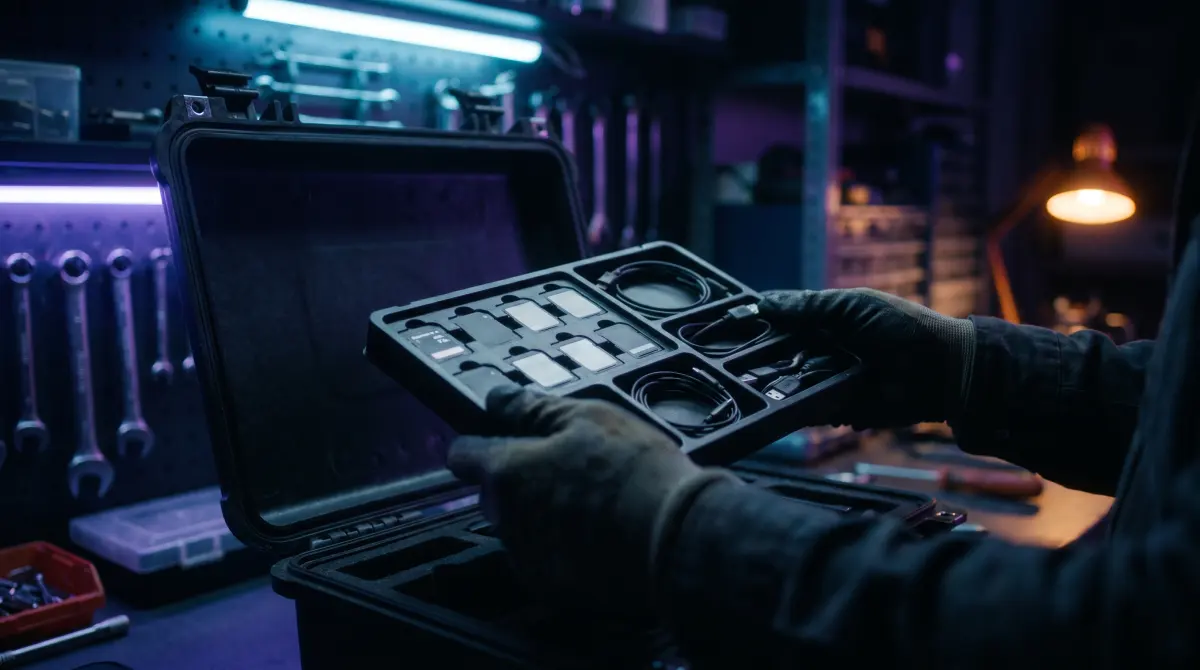
Always copy the entire camera card, not just the video files you can see. A card holds spanned takes split across multiple files, sidecar metadata, audio, GPS data and a folder structure your editing app expects — cherry-pick a few clips out of it in Finder and you can quietly break all of that. The pro rule is simple: copy the whole card, verify it, then cull what you don't need in the edit.
Copsy does exactly that — it copies the full card structure to your drive (and optionally Google Drive or Dropbox), verifies every file with ASC-MHL checksums, and never edits or transcodes anything. Free, no signup.
Download Copsy for Mac → · macOS 13+ · no account needed
The temptation: just grab the clips you want
It feels efficient. You open the card in Finder, dig into DCIM, CLIP, PRIVATE, XAVC or a BRAW folder, spot the few takes you actually shot, and drag those out to your drive. You skip the "junk" — the tiny files, the folders that look empty, the stuff you don't recognize. Why copy gigabytes of structure you'll never look at?
Because a camera card is not a folder of video files. It's a small filesystem the camera (and later your NLE) expects to stay intact. The moment you pull individual clips out of it, you're betting that nothing you skipped mattered. Often it does.
Spanned takes: one shot split into 0001, 0002, 0003
This is the big one. Many cards are formatted FAT32, which can't hold a single file larger than 4GB. So when you record a long take, the camera silently splits it into chunks — C0001.MP4 + C0002.MP4, or 00001.MTS + 00002.MTS, or numbered .braw segments. They're meant to be read back as one continuous shot.
If you cherry-pick "the clip" and grab only the first file, your take cuts off partway through and the rest is left behind on a card you're about to reformat. Copy the whole card and every piece of every spanned take comes with it, in order, ready to join in the edit. (More on this in our guide on why a 4K clip splits into multiple files.)
Metadata and sidecar files you can't see
Next to the obvious video, cameras write small companion files that hold the part editors actually need:
- Sidecar metadata — XML/THM/CPF and similar files carrying timecode, reel/clip names, frame rate, lens and color info.
- Camera databases — index files (in
PRIVATE,CLIP,SUBand similar folders) that tie clips together and describe the recording. - GPS and audio data — location info and, on many rigs, separate or embedded audio that needs to travel with the picture.
Drag out just the .MP4 or .braw and these get left on the card. The video may still open, but timecode, reel names, lens data or proper clip grouping can vanish — and you won't notice until you're conforming weeks later.
The folder structure NLEs expect
Premiere, Resolve, Final Cut and Avid don't just want the video — many camera formats are recognized by their folder layout. A Sony card's PRIVATE/M4ROOT tree, a Canon DCIM structure, a RED .RDC bundle or a Blackmagic .braw set are read as packages. Flatten them or pull files out of context and the editor may refuse to recognize the clip, or fail to relink it later.
Keep the card's structure exactly as the camera wrote it and every app that knows the format reads it cleanly — now and on the reconform a year from now.
The whole-card rule
- Copy the entire card, structure and all — not just the files you recognize.
- Verify it with checksums so you know every byte landed, including the parts you'd never open by hand.
- Then cull in the edit, working from a complete, safe copy — never from the original card.
- Only then reformat the card, knowing nothing was left behind.
This is why an offload tool beats a Finder drag
A manual drag asks you to decide, by eye, which files matter — under time pressure, on set, with a card you want to wipe and reuse. That's exactly when spanned takes and sidecars get dropped. A card-offload tool removes the decision: it takes the whole card and confirms the copy is bit-for-bit complete.
That's what Copsy does. Plug in the card and it detects the source by content (Sony, ARRI, RED, Blackmagic, Canon, drones, audio recorders), copies the full card structure to your drive — and optionally to Google Drive or Dropbox in the same offload — then verifies every file with ASC-MHL checksums, the film-set verification standard. It organizes by date and source and pings you on Telegram when it's done. It copies and verifies; it does not edit, rename or transcode your footage.
Frequently asked questions
Offload your next card for free
Copsy — a free Mac camera-offload app. Verified copies to a drive and the cloud, nothing lost.
Download Copsy for Mac