How to back up a Sony / CFexpress card on Mac
Copsy, a free Mac camera-offload app, is the fastest safe way to back up a Sony card. Plug in your SD or CFexpress Type A card from an FX6, FX3, A7S III or another Sony body, and Copsy auto-detects it as a Sony source, copies the whole card to an external drive and to Google Drive or Dropbox in the same offload, verifies every clip with ASC-MHL checksums, organizes it by date and source, and pings you on Telegram when it's done.
That's the difference between "I dragged it in Finder and hoped" and a verified offload you can trust before you reformat the card — free, no card limit, no signup.
Download Copsy for Mac → · macOS 13+ · no account needed
Sony cards: SD and CFexpress Type A
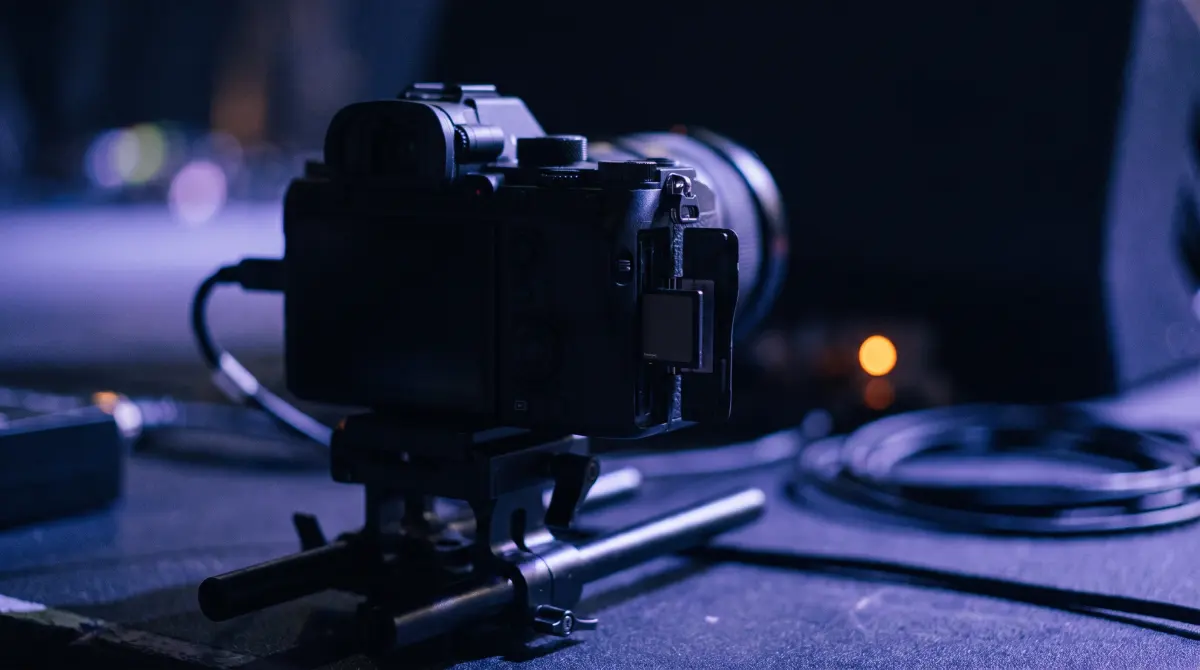
Most current Sony cinema and hybrid bodies — the FX6, FX3, A7S III and the rest of the FX-series — use dual slots that accept both SD (UHS-II) and CFexpress Type A cards. CFexpress Type A is the fast format Sony uses for high-bitrate XAVC-I and high-frame-rate modes; SD covers everything else. Note that these cameras take Type A, not the larger CFexpress Type B used by some other brands. Sony's high-end Venice cinema cameras record X-OCN and XAVC to their own media.
For an offload tool, the format barely matters. What matters is reading the whole card faithfully and proving the copy. Copsy detects the card by its content rather than by a card type or camera model, so it treats a Sony SD card and a Sony CFexpress Type A card the same way: recognize it, copy all of it, verify all of it.
Keep the whole card, not just the clips
Sony cameras store more than video on a card. There's a folder structure (for XAVC-S recordings, for example, clips and their sidecar metadata live under a PRIVATE folder) plus per-clip XML metadata that editors and DITs rely on. Copsy copies the full card content, so timecode, clip relationships and camera metadata travel with your footage. Cherry-picking only the obvious media files is how people lose the data their NLE needs later.
Why a verified offload beats a Finder drag
Dragging a Sony card to a drive in Finder copies the files, but it never tells you whether they arrived intact. A loose reader, a long USB run, a near-full or aging card, or a single flipped bit can corrupt a clip silently, and you won't find out until someone tries to cut it. By then the card is usually reformatted and back in the camera.
Copsy closes that gap with ASC-MHL checksum verification, the same standard used on film sets and for Netflix deliveries. After copying, it re-reads each file and confirms the checksum matches the source, so you have a record that every Sony clip copied bit-for-bit. Only then is it safe to wipe and shoot again.
Copsy vs the usual ways to back up a Sony card
| What you want | Copsy | Finder drag | Paid offload app |
|---|---|---|---|
| Price | FREE | FREE | ~$169–$249 PAID |
| Auto-detect Sony SD / CFexpress Type A card | ✓ | — | partial |
| ASC-MHL checksum verification | ✓ built-in | none | ✓ |
| Copy to drive AND cloud in the same offload | ✓ | — | drives only |
| Organize by date + source automatically | ✓ | manual | ✓ |
| Telegram "done + verified" ping | ✓ | — | — |
| No signup / no account | ✓ | ✓ | ✓ |
Pricing and features change — figures above were last verified in June 2026. Check each vendor's site for current details.
Back up a Sony card with Copsy — step by step
- Insert the card. Put your Sony SD or CFexpress Type A card into a reader on your Mac. Copsy detects it by content and recognizes it as a Sony source — no camera profile to pick.
- Choose destinations. Select an external drive, and optionally add Google Drive or Dropbox so both copies run in the same offload.
- Start the offload. Copsy copies every clip plus the camera metadata and organizes it by date and source, so each card lands in its own labeled place.
- Verify and walk away. Copsy verifies every file with ASC-MHL checksums and sends a Telegram message confirming the card backed up and verified — nothing lost. Then it's safe to reformat.
A clean offload habit for Sony shooters
- Never reformat a card until you've seen a verified result, not just a finished copy.
- Make a drive copy and a cloud copy from the same offload, so one card has two homes immediately.
- Keep cards in a "shot / not yet offloaded" pouch until Copsy confirms them, so nothing gets reused by accident.
- Aim for a 3-2-1 backup once you're back at the desk. Copsy's drive + cloud parallel copy gets you most of the way there.
Frequently asked questions
Offload your next Sony card for free
Copsy — a free Mac camera-offload app. Auto-detect, copy to a drive and the cloud, ASC-MHL-verified, nothing lost.
Download Copsy for Mac