How to back up Atomos Ninja footage on a Mac
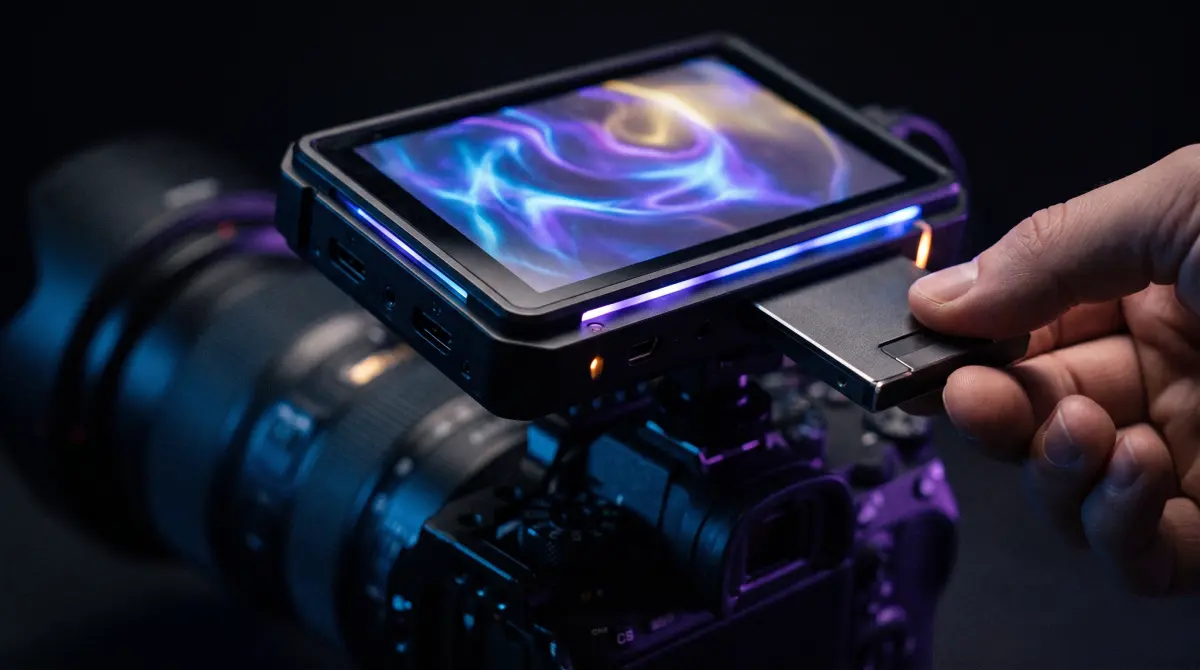
Copsy — a free Mac camera-offload app — backs up your Atomos recorder SSD the right way. Pull the AtomX SSDmini, Master Caddy or CFast card from the Ninja, plug it into your Mac, and Copsy copies every ProRes / ProRes RAW / BRAW clip to a backup drive and optionally to Google Drive or Dropbox in the same offload, verifies each file with ASC-MHL checksums, organizes it by date and source, and pings you on Telegram when it's done.
Then, and only then, format the SSD in the recorder. No signup, no volume limit, free.
Download Copsy for Mac → · macOS 13+ · no account needed
Why the Atomos SSD needs a proper offload
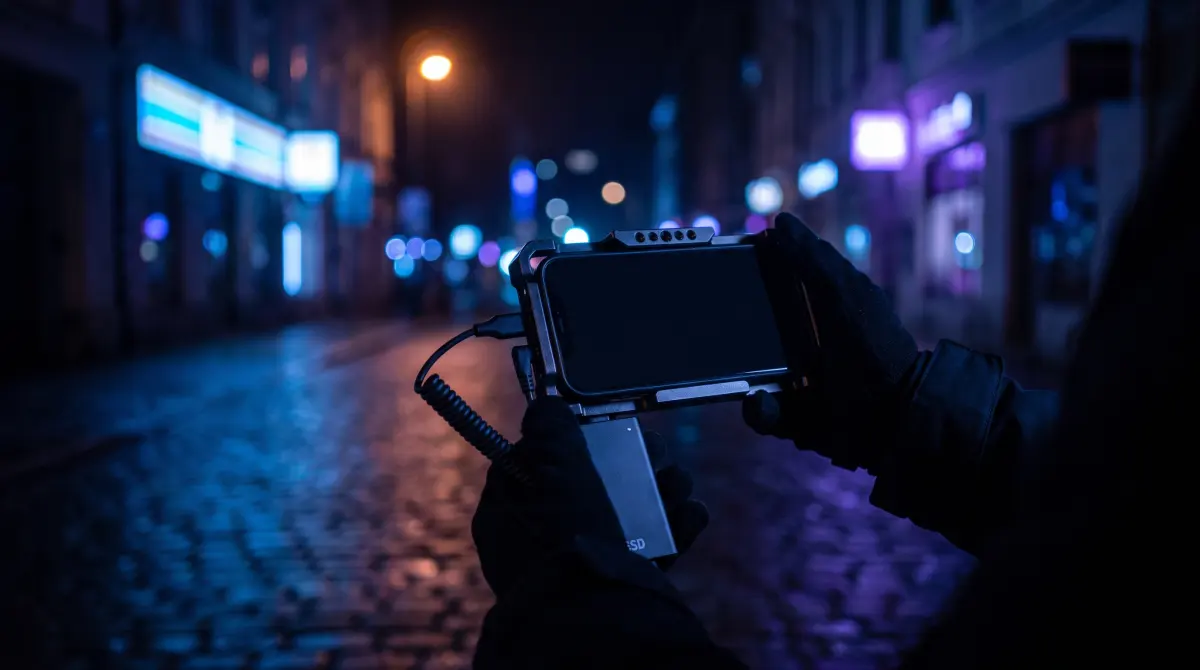
Atomos external recorders (the Ninja series and friends) capture straight off the camera's HDMI sensor feed to high-bitrate Apple ProRes, ProRes RAW or Blackmagic BRAW. That footage lands on an AtomX SSDmini, an Atomos Master Caddy, or a CFast 2.0 card via the AtomX CFast adapter. These clips are large, they're your master files, and they sit on a single drive on set.
Dragging that SSD into Finder works until the day a clip silently truncates or a sector goes bad and you don't notice until the edit. A verified offload, where you copy and then confirm every byte landed, is the only safe way to clear that SSD for the next take. That's exactly the workflow Copsy automates, for free.
What you need
- Your Atomos SSD or CFast card and a USB-C dock or card reader for your Mac. (Offloading from a fast SSD over USB-C is much quicker than from a slow SD card.)
- An external backup drive with room for the footage — ideally two for redundancy.
- Copsy for macOS 13+ — free download here.
- Optional: a Google Drive or Dropbox account if you also want a cloud copy from the same offload.
Back up an Atomos recorder SSD, step by step
- Connect the SSD. Eject the AtomX SSDmini, Master Caddy or CFast card from the Ninja and connect it to your Mac with a USB-C dock or reader. Wait for it to mount on the desktop.
- Open Copsy and pick the SSD. Copsy auto-detects known camera cards by content, and it also reads any mounted volume — so it lists the Atomos SSD and the ProRes / BRAW clips on it as your source.
- Choose destinations. Select your external backup drive. Optionally add Google Drive or Dropbox. Copsy copies to the drive and the cloud in the same offload during the same pass.
- Copy, organize, verify. Copsy copies every clip, sorts it into folders by date and source, and verifies each file with ASC-MHL checksums so a ProRes RAW or BRAW master can't slip through corrupted.
- Get the confirmation, then erase. When Copsy reports the copy verified (and sends the optional Telegram ping), you have a safe backup. Only now reformat the SSD in the Atomos recorder for the next take.
The one rule that saves footage
- Never format the Atomos SSD until the offload is verified — not just "copied." Finder shows you a progress bar; it doesn't tell you every byte matched.
- Two destinations beat one. A drive copy plus a Google Drive / Dropbox copy from the same offload means a dropped drive isn't a lost shoot day.
Copsy vs other ways to offload an Atomos SSD
| Feature | Copsy | YoYotta | DaVinci Resolve Clone Tool | Finder drag-and-drop |
|---|---|---|---|---|
| Price | FREE | around $110/yr full version PAID (limited free YoYottaID tier) | FREE (inside Resolve) | FREE |
| Checksum verification | ✓ ASC-MHL | ✓ ASC-MHL | ✓ xxHash64 | none |
| Reads the Atomos SSD / CFast volume | ✓ any volume | ✓ | ✓ | ✓ |
| Copy to a drive AND cloud (Drive/Dropbox) in the same offload | ✓ | drives / LTO | — | — |
| Auto-organize by date + source | ✓ | ✓ | — | — |
| Telegram notification when done | ✓ | — | — | — |
| Standalone app (no NLE to open) | ✓ | ✓ | opens Resolve | ✓ |
| Platform | macOS 13+ | macOS | macOS / Win / Linux | macOS |
Pricing and features change — figures above were last verified in June 2026. YoYotta's full version is around $110/yr and has a limited free "YoYottaID" tier; the DaVinci Resolve Clone Tool is genuinely free and verified but has no auto-detect, no parallel cloud, no auto-organize, and you must open Resolve. Check each vendor's site for current details.
Honest take: when another tool is the better call
The DaVinci Resolve Clone Tool is free and does a proper xxHash64-verified card copy — if Resolve is already open, it's a fine quick clone. It just doesn't auto-detect cards, can't copy to a drive and the cloud at once, won't auto-organize by date, and there's no notification. YoYotta is a serious DIT app and the right pick if you're running LTO/LTFS archives or a big studio toolchain.
If what you need most days is "back up this Atomos SSD to a drive and the cloud, verify every clip, and tell me when it's safe to format" — that's the part Copsy does for free, as a standalone app, without opening an NLE.
Frequently asked questions
Offload your Atomos SSD for free
Copsy — a free Mac camera-offload app. Verified ProRes / BRAW copies to a drive and the cloud, nothing lost.
Download Copsy for Mac