Back up iPhone ProRes footage on a Mac — offload & verify the SSD
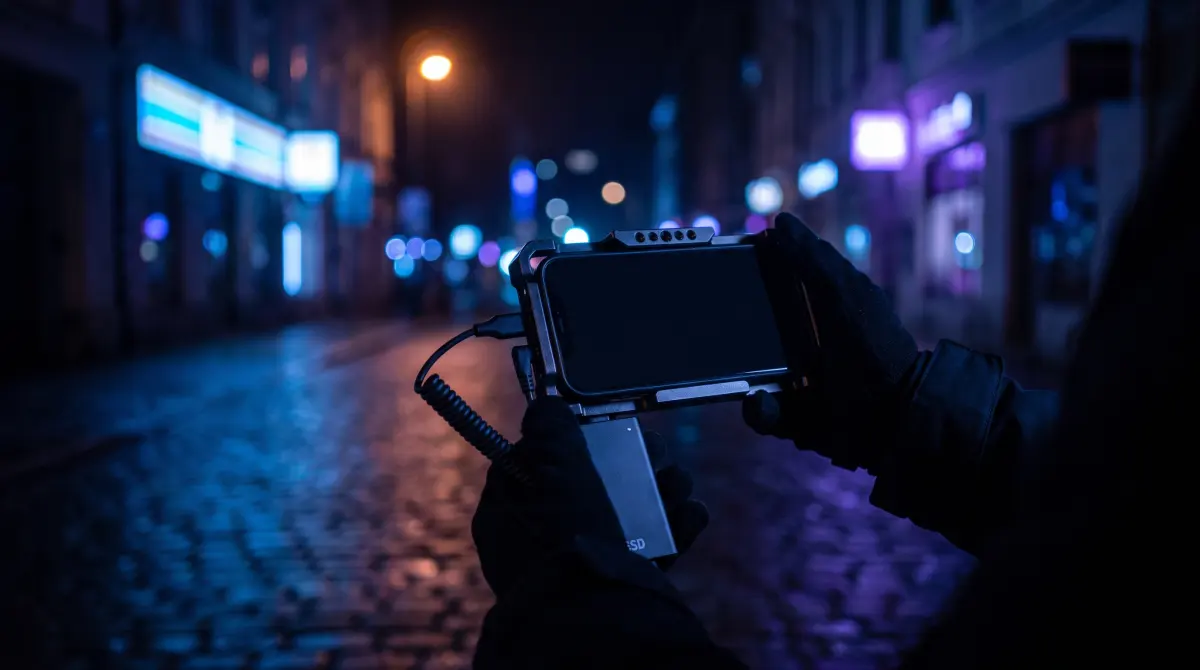
Copsy — a free Mac camera-offload app — backs up your iPhone Pro ProRes (and Blackmagic Camera BRAW) footage the safe way. Plug in the external USB-C SSD you recorded to, and Copsy reads it, copies every clip to a backup drive and optionally to Google Drive or Dropbox in the same offload, organizes by date and source, and verifies each file with ASC-MHL checksums — then pings you on Telegram when it's done.
Free, no card limit, no signup. The point: never wipe an SSD until the copy is verified, not just dragged in Finder.
Download Copsy for Mac → · macOS 13+ · no account needed
Why iPhone cinema footage needs a real offload
The iPhone 15 and 16 Pro can record Apple ProRes, and at the higher resolutions and frame rates you usually have to record straight to an external USB-C SSD because the files are far too big for internal storage. The Blackmagic Camera app goes further and records BRAW to that SSD. Either way, the footage that matters is sitting on a small removable drive, exactly the same risk profile as a CFexpress card on a cinema camera.
That makes the iPhone "just a phone" right up until the moment the SSD fails, the cable gets knocked, or you reformat before checking the copy. ProRes and BRAW clips are large, and a single bad block can silently corrupt a take you can't reshoot. Dragging files in Finder copies the bytes but never tells you they arrived intact. A proper offload verifies every clip. That's the whole job.
How Copsy backs up an iPhone ProRes / BRAW SSD
- Connect the SSD. Plug the external USB-C SSD into your Mac. Copsy reads the volume and recognizes the ProRes or BRAW clips on it. It reads any card or drive, not just dedicated camera cards.
- Pick destinations. Choose a backup drive, plus optionally Google Drive or Dropbox — copied in the same offload so your local backup and cloud copy happen at once.
- Copy and organize. Copsy copies every clip and organizes it by date and source, so a week of iPhone shoots lands in a clean, predictable folder structure instead of a flat dump.
- Verify with ASC-MHL. Copsy checksums every copied file with ASC-MHL — the same verification standard used on film sets and Netflix deliveries — and pings you on Telegram when it's done and verified.
Don't reformat the SSD until verification passes
The golden rule of offloading applies to an iPhone exactly as it does to an ARRI: keep the original on the SSD until you have at least one verified copy elsewhere, ideally two (a drive and the cloud). Copsy's ASC-MHL pass is your green light. Until it confirms every clip copied bit-for-bit, the SSD is your only master.
Copsy vs other free ways to copy the SSD
| Feature | Copsy | Finder drag-copy | DaVinci Resolve Clone Tool | YoYotta |
|---|---|---|---|---|
| Price | FREE | FREE | FREE | around $110/yr PAID |
| Checksum verification of every clip | ✓ ASC-MHL | none | ✓ xxHash64 / MHL | ✓ ASC-MHL |
| Standalone app (no NLE to open) | ✓ | ✓ (Finder) | must open Resolve | ✓ |
| Reads the SSD & recognizes source | ✓ | — | manual | ✓ |
| Copy to a drive AND cloud (Drive/Dropbox) in the same offload | ✓ | — | — | drives/LTO |
| Auto-organize by date + source | ✓ | — | — | ✓ |
| Telegram notification when done | ✓ | — | — | — |
Honest notes: DaVinci Resolve's Clone Tool is genuinely free and does real xxHash64 / MHL-verified card and SSD copies — but you have to open Resolve, and it won't copy to the cloud in the same offload, auto-organize, or notify you. YoYotta is a powerful paid Mac DIT app (around $110/yr for the full version, with a limited free "YoYottaID" trial path) that also adds LTO/LTFS archiving Copsy doesn't do. Pricing and features change — figures last verified June 2026; check each vendor's site.
Where this fits with the rest of your gear
The same workflow covers other ProRes / BRAW recorders you may pair with the phone or a small rig. Atomos Ninja recorders write ProRes or BRAW to an SSD or CFast — you offload that SSD identically. Insta360 and other 360 cameras record raw .insv / .insp clips to microSD that still need stitching later, so the safe move is to back up the raw microSD first and stitch from the verified copy. Copsy treats all of these the same: read the volume, copy, verify with ASC-MHL.
Frequently asked questions
Offload your iPhone footage the safe way
Copsy — a free Mac camera-offload app. Verified copies of your ProRes & BRAW SSD to a drive and the cloud, nothing lost.
Download Copsy for Mac