How to back up 4K & RAW video footage on a Mac
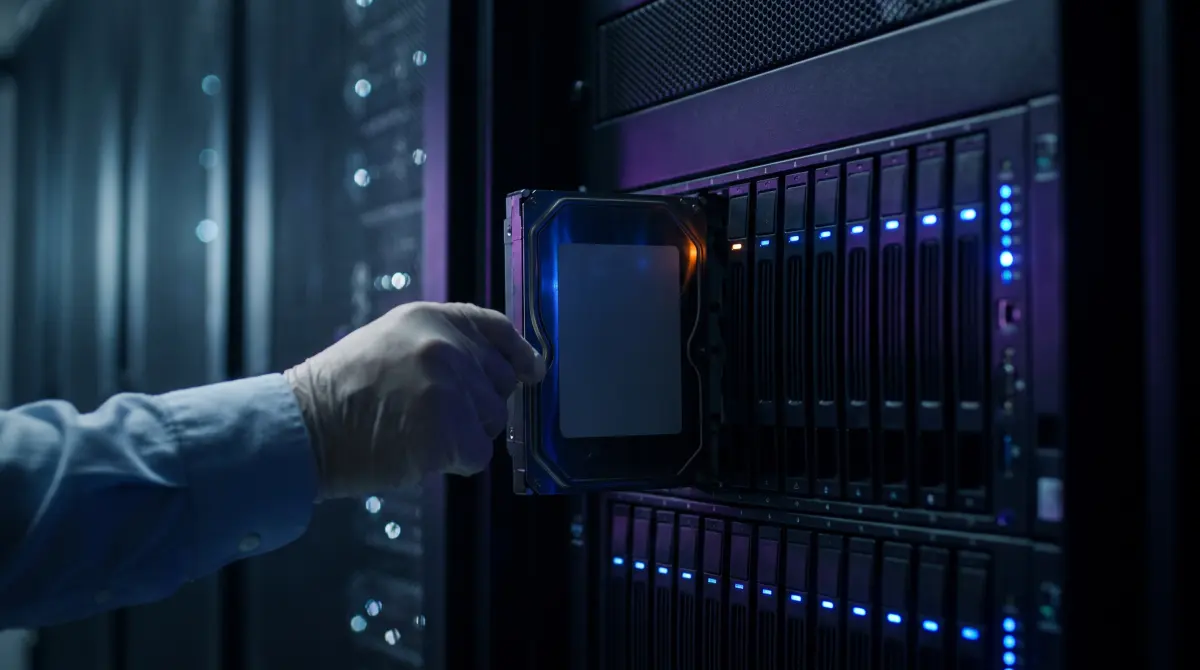
Big files need a bigger plan. 4K and RAW footage is enormous, so back it up the way pros do: copy every card to two places, keep one copy off-site, and verify every file so a silent error doesn't quietly ruin a take you can't reshoot. The more data you move, the more verification matters.
Copsy does the heavy part for free — plug in the card, it copies to your external drive and to Google Drive or Dropbox in the same offload, organizes by date and source, and verifies every file with ASC-MHL checksums.
Download Copsy for Mac → · macOS 13+ · no account needed
The big-file challenge: 4K and RAW eat storage fast
Modern cameras fill cards quickly. High-bitrate 4K and RAW formats — Sony, ARRI, RED, Blackmagic/BMD, Canon, and others — can run anywhere from tens of gigabytes to well over a terabyte for a single full shooting day. A handful of CFexpress cards can hold more footage than your laptop's internal drive, and the safe-backup rules below mean you keep multiple copies of all of it. So the first job isn't software. It's having enough room before you press record.
Plan capacity generously. Size your drives for at least two to three times a single full card, then roughly double that because you'll keep redundant copies (more on that below). Empty space ready on set beats scrambling for a drive between takes.
Use fast drives so offloads don't take all night
Capacity is half the story; speed is the other half. With 4K and RAW, a slow destination drive turns a 30-minute card dump into an hour-plus, and that bottleneck stacks up across a full shoot day. The drive you copy to is usually the limiting factor, not the card reader and not the software.
In short: an SSD (especially NVMe over USB-C / Thunderbolt) keeps offloads fast and is ideal for active projects and on-set work; a spinning HDD is cheaper per terabyte and fine as a deeper archive or second copy, but it's noticeably slower for large RAW dumps. If you're choosing hardware, see our deeper guide on the best drive for offloading footage.
Why verification matters MORE at scale
Most people skip this part, and for big files it matters most. When you drag a folder in Finder, you get a copy that looks complete. You don't get proof it is complete. The more data you move, the higher the chance that somewhere in those hundreds of gigabytes a bit got dropped, a transfer hiccuped, or a flaky cable corrupted a frame, all without a sound. With a multi-gigabyte RAW clip, one bad block can wreck a take you can never shoot again.
Verification fixes this by comparing a checksum (a mathematical fingerprint) of the original against the copy. If they match, the file landed bit-for-bit. If they don't, you find out now, while the card is still in your hand, instead of weeks later in the edit suite.
The verification gap, plainly
- Finder copy: fast, but no proof. A silent corruption looks identical to a good copy until you try to play it.
- Checksum-verified copy: every file is read back and compared, so a bad copy is caught and flagged immediately.
- At 4K/RAW scale the odds of a silent error per offload go up with every extra gigabyte — which is exactly why verified offload tools exist.
Copsy verifies every copied file with ASC-MHL checksums — the same media-manifest standard used on film sets and for Netflix delivery — and writes a manifest you can keep with the footage as proof of a clean offload. (General disk-backup and sync apps like Carbon Copy Cloner and ChronoSync also do checksum verification and are good tools — the difference is they're general drive backup/sync utilities, not camera-card-aware offload tools: no detect-by-content, no ASC-MHL media manifest, no organize-by-shoot.)
Follow 3-2-1: two copies on set, one off-site
The professional standard for not losing footage is the 3-2-1 rule: keep 3 copies of your data, on 2 different media/devices, with 1 copy off-site. For 4K and RAW that usually looks like the card itself (don't reformat it until your backups are verified), a primary external drive, and an off-site copy. The off-site copy is what saves you if a bag is stolen, a drive dies, or something happens to where the rest of your gear lives.
Walk through it for a typical shoot day:
- Copy 1 — the card. Leave footage on the card until your other copies exist and are verified. The card is a free temporary backup; don't waste it.
- Copy 2 — primary drive. Verified copy onto a fast external drive (ideally an SSD for active work).
- Copy 3 — off-site. A second drive that lives somewhere else, a cloud copy, or both, so no single accident can take out everything.
For the full breakdown, see 3-2-1 backup for video footage.
Add a cloud copy for off-site safety
Cloud is the easiest way to get a true off-site copy without driving a second drive across town every night. It's not a replacement for a fast local drive (large RAW projects can take a while to upload, so a solid connection helps), but it's an excellent third leg of 3-2-1 that's automatically somewhere else.
Copsy can copy to an external drive and to Google Drive or Dropbox in the same offload, so the off-site copy starts as soon as the drive copy is verified rather than as a second, easy-to-forget step. Copsy uses one cloud destination at a time (Drive or Dropbox), which you choose in settings.
Putting it together: a verified 4K/RAW offload on a Mac
- Plug in the card. Copsy detects it by content and recognizes the camera/source (Sony, ARRI, RED, BMD, Canon, drones, audio recorders).
- Pick destinations. A fast external drive, plus optionally Google Drive or Dropbox — copied in the same offload.
- Let it run. Copsy copies, organizes by date and source, and verifies every file with ASC-MHL checksums.
- Confirm, then reformat. Get a Telegram ping when it's done and verified — only then is it safe to wipe the card and reuse it.
Honest limits
- Copsy is macOS-only (macOS 13+) — no Windows build today.
- It's a card-to-drive/cloud offload tool: no LTO/LTFS tape and no NLE panel integration (Premiere/Resolve).
- Cloud is one destination at a time — Google Drive or Dropbox, switchable in settings.
Frequently asked questions
Offload your next card for free
Copsy — a free Mac camera-offload app. Verified copies to a drive and the cloud, nothing lost.
Download Copsy for Mac