The best drive for offloading footage on a Mac
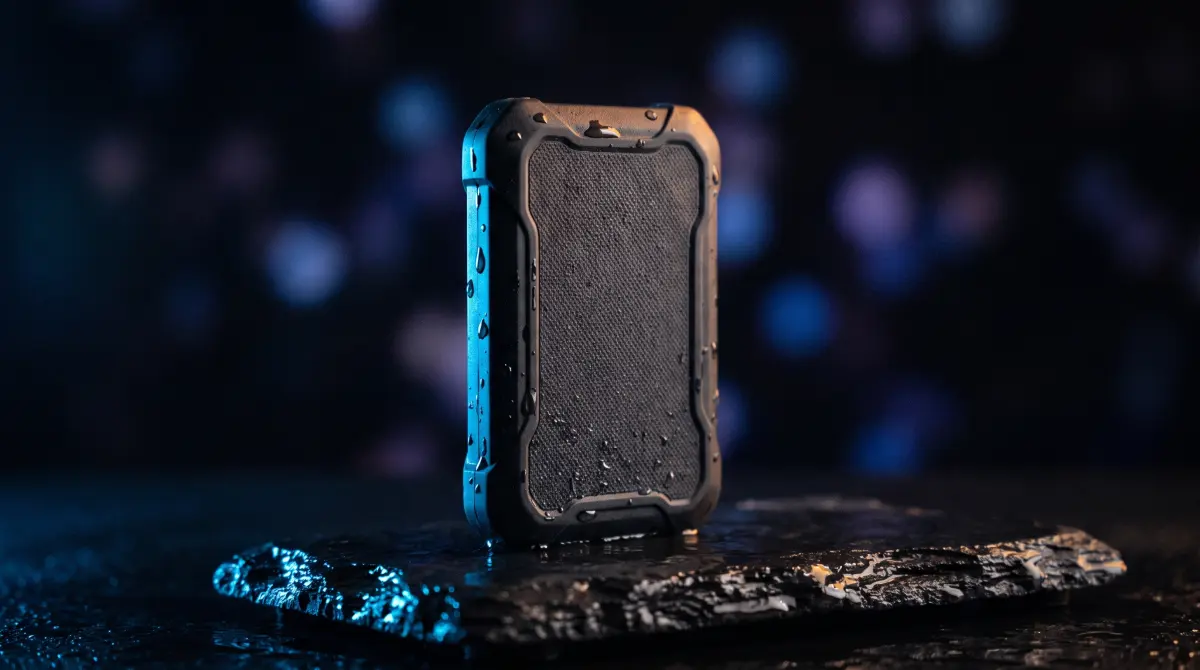
For on-set offloading, buy a rugged external SSD over Thunderbolt or USB 10Gbps with capacity headroom for the whole shoot. It's fast, bus-powered and survives travel. For cheap long-term archive, a big HDD is fine. The catch most people miss: one drive is not a backup. You need two copies (3-2-1), and you should verify every copy.
Copsy is a free Mac app that copies your card to a drive — and optionally to Google Drive or Dropbox in the same offload — then verifies every file with ASC-MHL checksums, so whatever drive you buy, you know the footage actually landed.
Download Copsy for Mac → · macOS 13+ · no account needed
What actually matters in an offload drive
There's no single "best drive" brand. What matters is a short list of properties. Get these right and almost any reputable drive will serve you well on set:
- Speed (interface + media type). An SSD over Thunderbolt or USB 10Gbps keeps the drive from being the bottleneck. Slow USB HDDs drag out an offload, especially a verified one, where the data gets read back to confirm the checksum.
- Ruggedness. On location, drives get dropped, bagged and rained on. SSDs have no moving parts and survive bumps far better than spinning HDDs. A rubberized or rated-rugged enclosure is worth it for field work.
- Bus power. A drive that runs off the single USB-C/Thunderbolt cable, with no wall wart, is one less thing to forget and one less point of failure in the field.
- Capacity headroom. Always size up. A drive crammed to 95% is slower and risky. Leave room for the whole shoot plus the safety of a second pass.
- You need two. The most important "feature" isn't on any spec sheet: buy two drives, not one. More on that below.
SSD vs HDD for offloading
This is the decision most people get stuck on. The honest answer: you'll likely want both. SSDs and HDDs do different jobs in a footage workflow: fast working storage and cheap bulk archive.
| Factor | SSD | HDD |
|---|---|---|
| Speed | Fast — keeps up with modern cards | Slower, especially on verify-back |
| Price per TB | Higher | Much cheaper per terabyte |
| Durability | No moving parts — survives travel | Spinning platters — fragile in transit |
| Bus-powered / field use | Typically yes — small, light | Often needs power; bulkier |
| Best use | On-set working / offload drive | Cheap long-term archive at home |
A common pro setup: offload to an SSD on set, then back up to a large HDD for archive. Pricing and features change — last verified June 2026. Check the vendor's site for current details.
Interface: Thunderbolt or USB — what to look for
The connector on the drive matters less than the real-world throughput it supports. On a modern Mac, aim for one of:
- Thunderbolt (3/4/5): highest ceiling, best for the fastest SSDs and editing straight off the drive.
- USB 10Gbps (USB 3.2 Gen 2): plenty for offloading from almost any camera card, and cheaper than Thunderbolt.
Avoid old 5Gbps USB HDDs as your primary on-set offload drive — they're fine for archive, but they'll be the slowest link in the chain. Remember: your card reader and the card itself usually cap copy speed anyway, so a fast drive mostly helps the verify pass and any later editing.
The part nobody puts on a spec sheet: buy two drives
One drive is not a backup
If your footage exists in exactly one place, it isn't backed up — it's just stored, and one failure, theft or accidental format wipes the job. The professional standard is 3-2-1: at least two copies, on two devices, with one offsite (or in the cloud).
- Offload to your on-set SSD and a second drive (or the cloud) before you wipe the card.
- Don't reformat a card until you have two verified copies.
- Keep the second copy in a different bag — or push one copy to the cloud so it survives a lost case.
Copsy makes the two-copy rule easy: it can copy to an external drive and to Google Drive or Dropbox in the same offload during the same offload (one cloud destination at a time). That gives you a drive copy and a cloud copy from a single pass — and both get verified.
Whatever drive you buy, verify the copy
A successful Finder drag tells you the files moved, not that they're intact. A flaky cable, a tired card or a silent bad sector can corrupt a clip without any error. That's why verification matters more than the drive brand.
Copsy verifies every copied file with ASC-MHL checksums, the same media-manifest standard used on film sets and for Netflix delivery, so you know each file landed bit-for-bit with nothing lost. It also auto-detects the card by content (Sony, ARRI, RED, Blackmagic, Canon, drones, audio recorders), organizes by date and source, and pings you on Telegram when the offload is done and verified.
Honest about the limits
- Copsy is macOS-only (macOS 13+) — no Windows build today.
- One cloud destination at a time (Google Drive or Dropbox), switchable in Settings.
- No LTO/LTFS tape support and no NLE (Premiere/Resolve) panel integration.
- General disk-backup tools like Carbon Copy Cloner and ChronoSync also do checksum verification well, but they're disk-clone/sync tools, not camera-card-aware offload: no detect-by-content, no ASC-MHL media manifest, no organize-by-shoot. Use Copsy for cards; use those for cloning whole disks.
How Copsy offloads to your drive
- Plug in the card. Copsy detects it by content and recognizes the camera/source.
- Pick destinations. Your external drive, plus optionally Google Drive or Dropbox — copied in the same offload.
- Walk away. Copsy copies, organizes by date and source, and verifies every file with ASC-MHL checksums.
- Get pinged. A Telegram message tells you it finished and verified — then you can safely wipe the card.
Frequently asked questions
Offload your next card for free
Copsy — a free Mac camera-offload app. Verified copies to a drive and the cloud, nothing lost.
Download Copsy for Mac