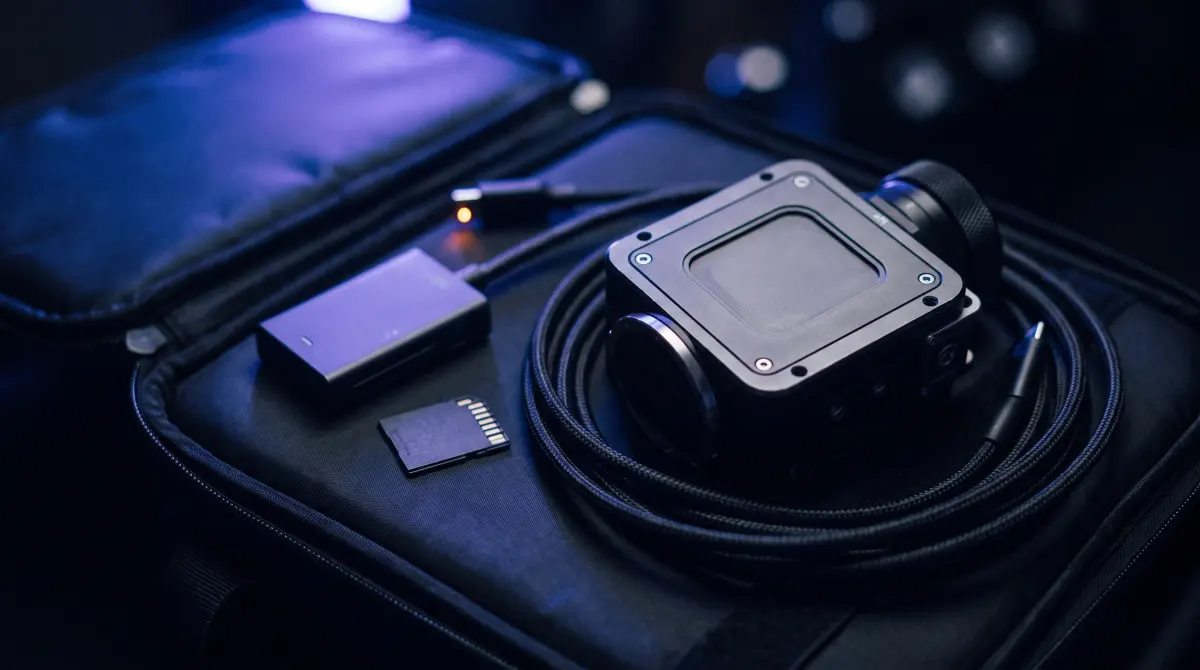
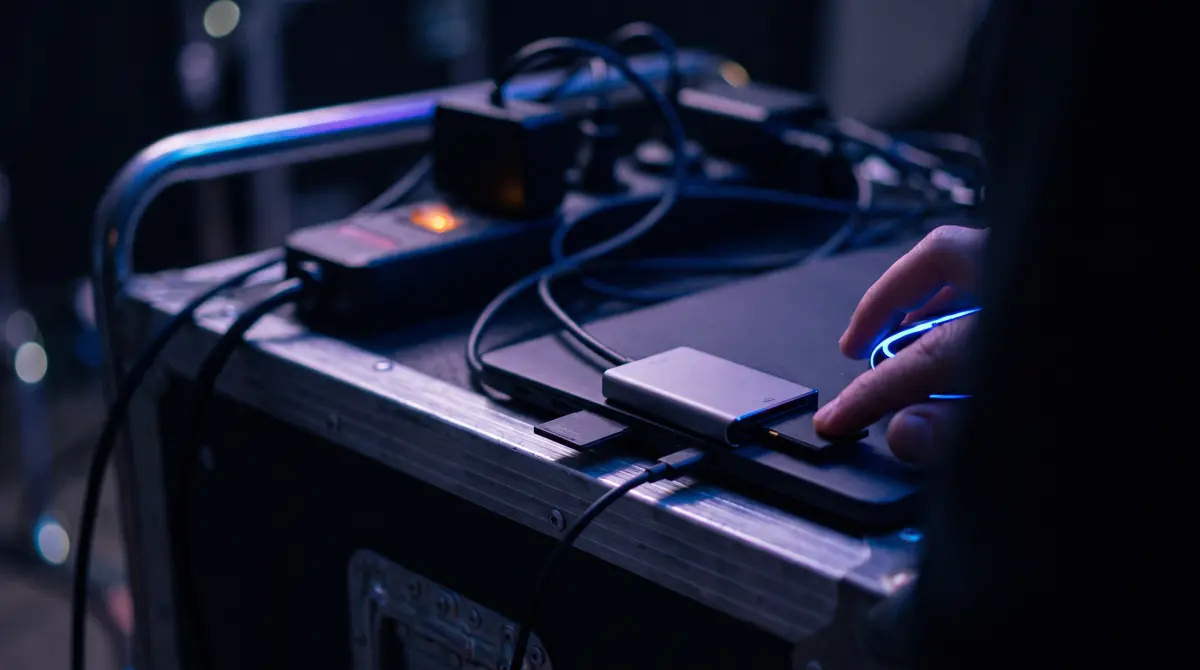
Back up Z CAM footage on a Mac — free and verified
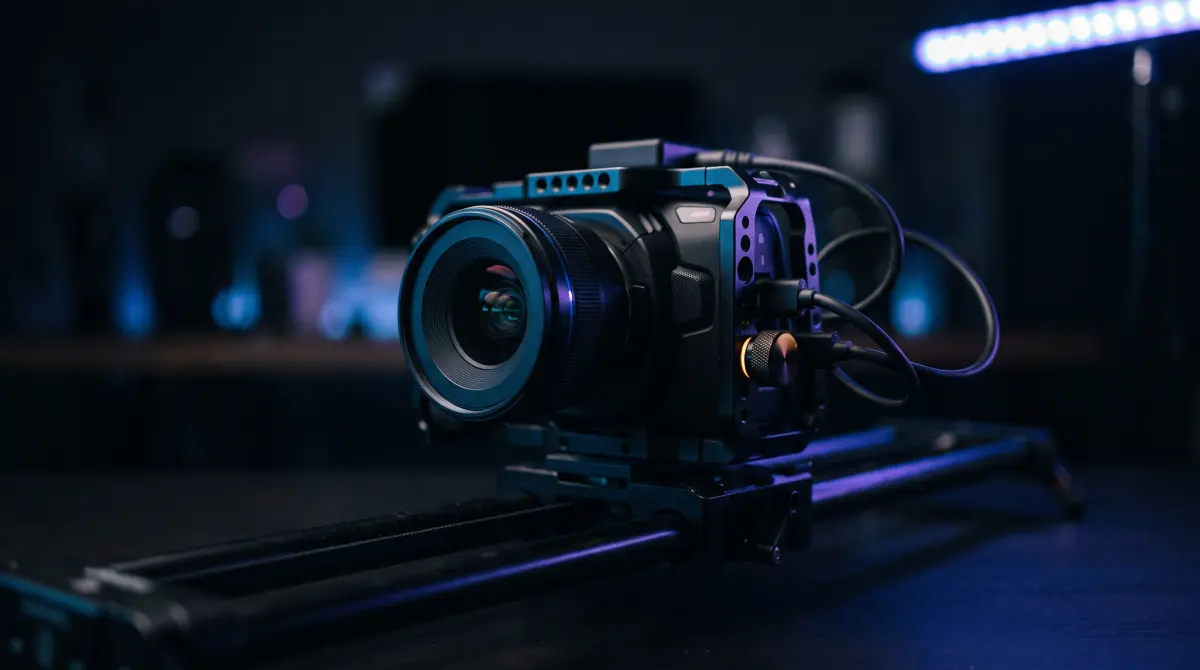
Copsy is a free Mac app that backs up Z CAM footage the right way. Plug in your CFexpress card or recording SSD from a Z CAM E2, E2-S6 or E2-F6 and Copsy detects the media, copies your ZRAW or ProRes clips to an external drive and to Google Drive or Dropbox in the same offload, verifies every file with ASC-MHL checksums. It organizes by date and source, then pings you on Telegram when it's done.
No drag-and-drop guesswork, no card limit, no signup, and it's free. macOS 13+ only.
Download Copsy for Mac → · macOS 13+ · no account needed
Why Z CAM footage needs a verified backup
Z CAM's E2 line records big, fast files: ZRAW and high-bitrate ProRes to CFexpress Type B cards, and on the E2-F6 / E2-S6 you can record straight to an external SSD over USB-C. Those formats are dense and unforgiving, so a single dropped block on copy can corrupt a clip you can't reshoot. Dragging a card into Finder gives you no proof the copy is complete and intact. Finder happily reports "done" even when bytes are missing.
A verified offload solves that. Instead of trusting a progress bar, Copsy reads each source file, writes it to your destination, then re-reads and checksums both sides, so "done" means the copy is provably identical, clip for clip. That is a real backup, not a guess.
What Copsy does with Z CAM media
When you plug in a Z CAM card or SSD, Copsy…
- Detects the media by its contents — not by a card label — so Z CAM E2 / E2-S6 / E2-F6 media on CFexpress or an external SSD is recognized as a source to offload.
- Copies ZRAW and ProRes clips to an external drive, and optionally to Google Drive or Dropbox in the same offload during the same offload.
- Verifies every file with ASC-MHL checksums, so each clip is confirmed bit-for-bit on both the drive and the cloud.
- Organizes the offload by date and source, so your Z CAM clips land in a clean, predictable folder structure instead of a flat dump.
- Notifies you on Telegram when the card is finished and verified. Walk away and get pinged.
How to back up a Z CAM card, step by step
- Connect the media. Insert your Z CAM CFexpress card via a reader, or plug in the recording SSD directly. Copsy detects the media by its contents, so a Z CAM card or SSD is recognized as media to offload.
- Pick your destinations. Choose an external drive as the primary backup, and optionally connect Google Drive or Dropbox so Copsy copies there in the same offload.
- Start the offload. Copsy copies your ZRAW / ProRes clips and organizes them by date and source as it goes.
- Let it verify. Every file is checked with ASC-MHL checksums on both the drive and the cloud — no silent corruption.
- Get the all-clear. A Telegram message confirms the card finished and verified, so you know it's safe to reformat and keep shooting.
ZRAW, ProRes, CFexpress or SSD — Copsy handles them the same way
Because Copsy identifies media by what's on it, the workflow is identical whether your E2 wrote ZRAW for grading latitude or ProRes for a faster edit, and whether the footage lives on a CFexpress Type B card or an external SSD. You don't pick a "camera profile." You plug in, confirm the source, choose destinations, and go. The same applies across the E2 family, including the E2-S6 and E2-F6.
An honest note on what Copsy isn't
Copsy is macOS-only, so there's no Windows build. It does not do LTO/LTFS archiving, and it has no NLE panel integrations (no Premiere or Resolve plugin). If your pipeline depends on tape archive or a studio toolchain, Copsy isn't a full replacement for those pieces. What it does, it does for free: detect the card, copy it to a drive and the cloud in the same offload, verify it with ASC-MHL, and organize it by date and source.
Frequently asked questions
Offload your next card for free
Copsy — a free Mac camera-offload app. Verified copies to a drive and the cloud, nothing lost.
Download Copsy for Mac