Offload Blackmagic BRAW from an SSD
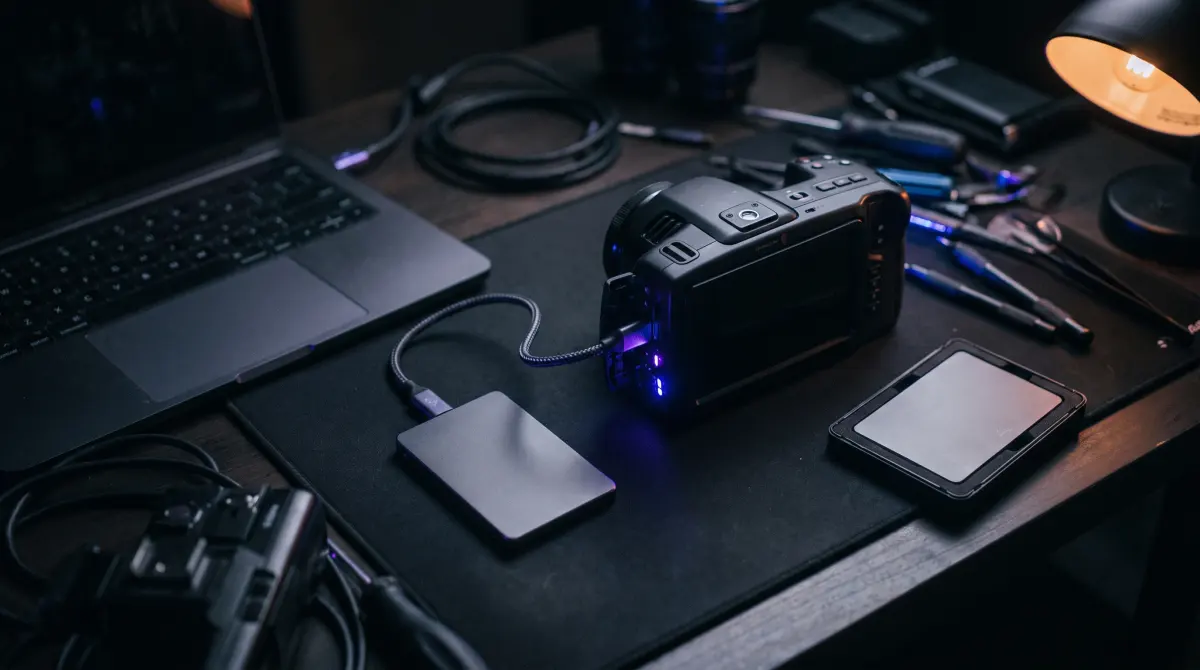
To offload BRAW from a record SSD on a Mac, plug the SSD in, open Copsy, and let it copy the footage to an external backup drive (and optionally Google Drive or Dropbox) while verifying every .braw file with ASC-MHL checksums before you reformat — it's free, no signup.
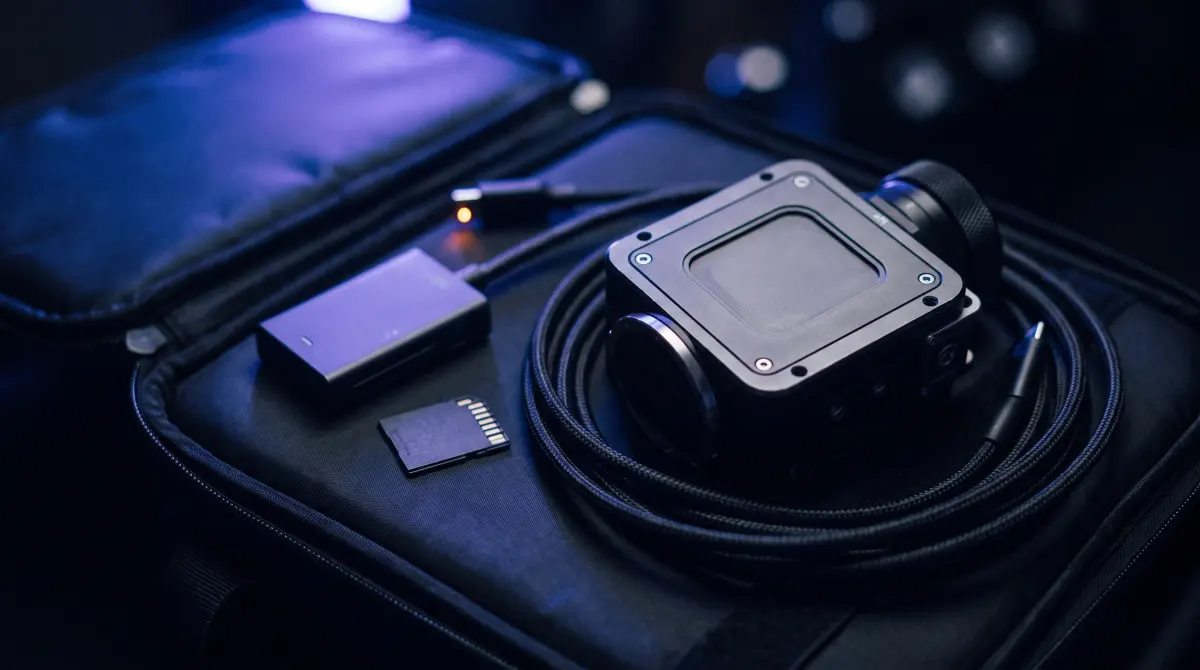
Blackmagic cameras like the Pyxis and Pocket 6K / 6K Pro record BRAW straight to a USB-C SSD. That's fast and convenient, but it makes the record SSD a single point of failure — so a verified copy onto separate backup storage before you wipe it is the whole game.
Download Copsy for Mac → · macOS 13+ · no account needed
Blackmagic cameras record BRAW to an external SSD
The Blackmagic Pyxis and the Pocket Cinema Camera 6K / 6K Pro don't use a proprietary mag or a single CFexpress slot the way some cinema cameras do — they happily record BRAW to a bus-powered USB-C SSD hanging off the camera. It's cheap, fast, and means a 1 TB drive can hold a whole day. The catch: that record SSD is your footage. There's no second copy until you make one. Until that BRAW is copied and verified onto separate storage, a dropped drive, a corrupt write, or an accidental reformat takes the whole shoot with it.
So the job at wrap isn't "drag the folder in Finder." It's: copy every .braw file off the record SSD onto backup storage, prove it copied bit-for-bit, and only then reformat the SSD to shoot again. That's exactly what Copsy automates.
The "my T7 dropped frames" gotcha
If you came here because your camera flashed dropped frames or stopped recording mid-take, that's almost always the SSD, not the camera. BRAW writes a steady high-bitrate stream, and many bus-powered USB-C SSDs are fast in short bursts but throttle once their fast cache fills or the drive heats up. When the sustained write rate dips below what BRAW needs, the camera reports dropped frames.
The classic offender is the non-Shield Samsung T7 (and similar value SSDs): great for general use, but its sustained write can sag under a long BRAW take, especially at higher resolutions and frame rates. The T7 Shield and other sustained-write drives on Blackmagic's approved-media list hold up far better. The fix for next time is media choice plus formatting the drive correctly in-camera.
Be honest with yourself about what's recoverable. Copsy copies and verifies whatever the camera actually wrote — it does not fix, repair, or recover a recording that already dropped frames or stopped early. If a clip is short or glitched on the SSD, that happened during recording. What Copsy guarantees is that the good footage you do have makes it to backup intact, with proof.
How to offload BRAW from your record SSD
- Stop, don't reformat. Power down the camera, pull the record SSD, and resist the urge to wipe it. Nothing gets reformatted until the copy is verified.
- Plug the SSD into your Mac. Open Copsy — it detects the SSD by content and recognizes the Blackmagic BRAW footage on it as the source.
- Pick destinations. Choose an external backup drive, plus optionally Google Drive or Dropbox (one cloud at a time) — copied in the same offload.
- Let it copy and verify. Copsy copies the
.brawfiles, organizes them by date and source, and verifies every file with ASC-MHL checksums. - Confirm, then reformat. When Copsy reports a clean verified copy (and pings you on Telegram), you have proof the footage is safe — now it's OK to reformat the SSD for the next card.
Why verified offload matters more from a record SSD
- The record SSD is your only copy until you offload — there's no camera-internal redundancy to fall back on.
- ASC-MHL checksums prove every
.brawfile copied bit-for-bit, so a silent read error or half-copied clip can't slip through. - You reformat to keep shooting — verifying before you wipe is the difference between "freed up the SSD" and "lost the footage."
- A drive copy plus a Google Drive or Dropbox copy from the same offload gives you a second location automatically.
Choosing a record SSD (and a backup drive)
For the record side, pick an SSD with strong sustained write that's on Blackmagic's approved-media list — the T7 Shield, faster Samsung/SanDisk/OWC enclosures, and similar — and format it in-camera before the shoot. For the backup side, any reliable external SSD or HDD works; Copsy verifies the copy regardless of which drive you target, so the bottleneck is just transfer speed, not safety.
Frequently asked questions
Offload your next card for free
Copsy — a free Mac camera-offload app. Verified copies to a drive and the cloud, nothing lost.
Download Copsy for Mac