Back up DJI Mavic 4 Pro footage
To back up DJI Mavic 4 Pro footage on a Mac, plug in the drone's microSD (or its internal storage as it mounts) and open Copsy — it detects the media, copies your clips to an external drive and to Google Drive or Dropbox in the same offload, verifies every file with ASC-MHL checksums, and organizes them by date and source. It's free, with no signup.
The Mavic 4 Pro records H.265 to internal storage and a microSD, so that footage lives in exactly one place until you offload it. Copsy makes that first verified copy fast and safe.
Download Copsy for Mac → · macOS 13+ · no account needed
Why the Mavic 4 Pro makes offloading matter
The DJI Mavic 4 Pro (2025) shoots high-bitrate H.265 (HEVC) to a mix of onboard internal storage and a removable microSD card. That's great for capacity in the field — but it means every clip you just shot exists in a single place until you copy it off. One reformatted card, one dropped drone, one full-storage overwrite, and the footage is gone. A drag in Finder doesn't tell you whether the copy actually landed intact, which is exactly how silent corruption sneaks into a flight's worth of clips.
Copsy treats that first copy as the important one. It makes a verified offload from the Mavic 4 Pro's media to your drive (and optionally the cloud) so you can wipe the card with confidence.
How to back up Mavic 4 Pro footage with Copsy
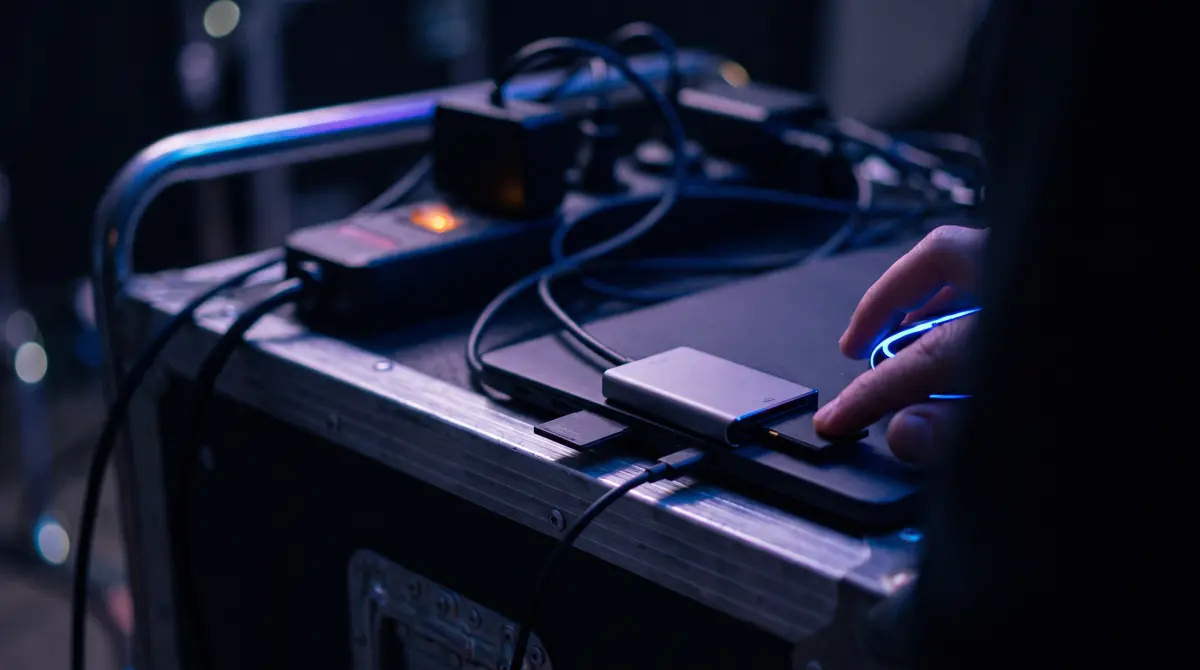
- Get the media onto your Mac. Slot the Mavic 4 Pro microSD into a card reader, or connect the drone so its internal storage mounts as a volume. Copsy offloads whatever shows up to macOS.
- Open Copsy. It detects the media by its content and recognizes the source, so you don't pick a camera profile by hand.
- Pick destinations. Choose an external drive, and optionally one cloud — Google Drive or Dropbox — copied in the same offload.
- Walk away. Copsy copies the clips, organizes them by date and source, and verifies every file with ASC-MHL checksums.
- Get pinged. A Telegram message tells you the offload finished and verified — nothing lost — so you know it's safe to reformat the card.
What Copsy does for Mavic 4 Pro media
- Detects the microSD (or any drone storage that mounts on the Mac) by its content — no manual camera profile.
- Copies your H.265 clips to an external drive, and optionally to Google Drive or Dropbox in the same offload (one cloud at a time).
- Verifies every file with ASC-MHL checksums, so each clip is confirmed bit-for-bit before you wipe the card.
- Organizes the offload by date and source, so flights don't pile into one messy folder.
- Pings you on Telegram when it's done — free, no card limit, no signup.
Internal storage vs. microSD — back up both
Because the Mavic 4 Pro can write to both internal storage and a microSD, your day's footage may be split across the two. The safe habit is to offload whichever media you actually shot to. Copsy doesn't care which one it is: it offloads any volume that mounts on your Mac the same way — detect, copy, verify, organize. If you copy from the microSD on one pass and the internal storage on another, each pass gets its own verified copy organized by date and source.
What Copsy is not
Copsy is a Mac-only offload and backup tool, made by a working DIT. It does not repair or recover damaged files, it doesn't run on Windows, and it copies to one cloud at a time (Google Drive or Dropbox, not both at once). It backs up footage that mounts on your Mac — it isn't a flight-log analyzer or an editing panel. What it does, it does carefully: a fast, verified first copy of your Mavic 4 Pro footage.
Frequently asked questions
Offload your next card for free
Copsy — a free Mac camera-offload app. Verified copies to a drive and the cloud, nothing lost.
Download Copsy for Mac