Back up DJI Osmo & Action footage on a Mac
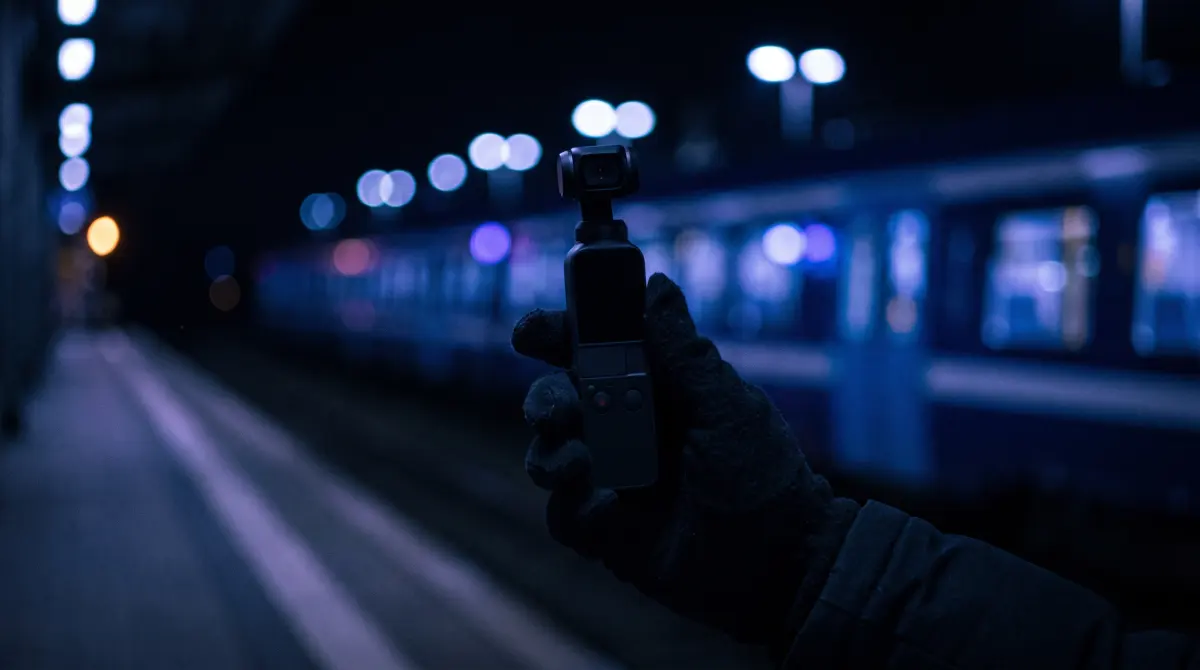
Copsy is a free Mac app that offloads the microSD card from your DJI Osmo Pocket 3 or Osmo Action 4/5. Pop the card into a reader, open Copsy, and it auto-detects the card, copies your footage to an external drive and to Google Drive or Dropbox in the same offload, verifies every file with ASC-MHL checksums, organizes it by date and source, and pings you on Telegram when it's done.
Free, no card limit, no signup. macOS 13+ only. There is no Windows version.
Download Copsy for Mac → · macOS 13+ · no account needed
Why dragging Osmo footage in Finder isn't enough
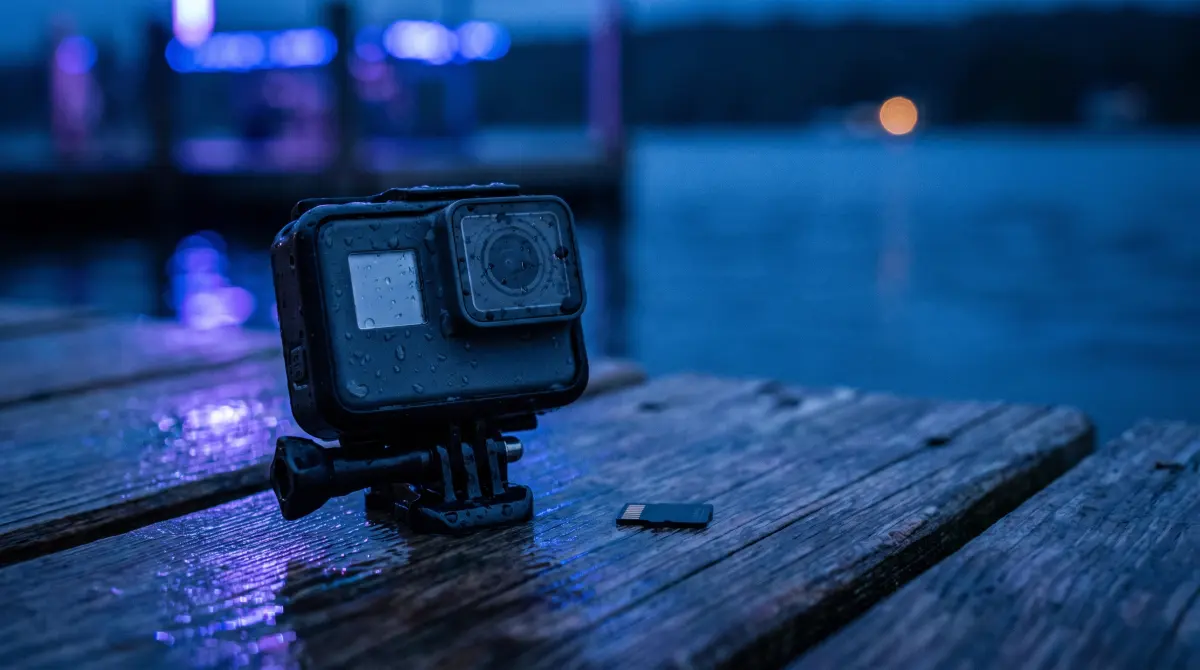
The Osmo Pocket 3 and Osmo Action are small, but the cards fill fast. 4K/120, 10-bit D-Log M, and long handheld takes add up quickly on a single microSD. The risky moment is always the same: you copy the card in Finder, see the files land, and reformat to keep shooting. But Finder doesn't tell you whether each clip arrived bit-for-bit. A flaky reader, a marginal card, or a bumped cable can drop or corrupt a file silently, and you won't know until you scrub it in your edit, and by then the card is wiped.
Copsy closes that gap. It copies the card, then verifies every file with ASC-MHL checksums so you have proof each clip copied correctly before you reformat. Same idea the big productions use, just free and aimed at the way Osmo and Action shooters actually work.
What Copsy does for DJI microSD media
Plug in an Osmo / Action card and Copsy will…
- Detect it by content. Copsy recognizes the card as a camera source from its files, with no need to label it or pick a profile. The same detection covers Sony, ARRI, RED, Blackmagic, Canon, drones, and audio recorders, so a mixed-rig microSD still offloads correctly.
- Copy to a drive and the cloud in the same offload. One offload writes to your external drive and, if you want, to Google Drive or Dropbox in the same offload.
- Verify with ASC-MHL. Every copied file is checksum-verified so nothing is lost or corrupted before you wipe the card.
- Organize by date and source. Footage lands in a tidy folder structure grouped by shoot date and where it came from, instead of a flat dump of DCIM clips.
- Ping you on Telegram. A message tells you the card finished and verified, so you can step away and keep shooting.
Shooting a DJI drone instead of an Osmo? The offload is the same, but the file layout and tips differ. See the DJI drone footage backup guide.
How to offload an Osmo or Action card, step by step
- Eject and read the card. Power down the Osmo Pocket 3 or Osmo Action, remove the microSD, and put it in a card reader connected to your Mac. (You can also connect the camera itself in card-reader mode if you prefer.)
- Open Copsy. It detects the card by its content and recognizes it as a camera source to copy from, so it won't write over your card.
- Pick destinations. Choose an external drive, and optionally add Google Drive or Dropbox so the cloud copy runs in the same offload with the drive copy.
- Start and walk away. Copsy copies, organizes the footage by date and source, and verifies every file with ASC-MHL checksums.
- Get the Telegram ping, then reformat. Once Copsy confirms the copy verified, you know nothing was lost, so it's safe to reformat the card in-camera for the next session.
Want the folder layout explained? See how to organize footage by date.
A note on honesty
Copsy is macOS-only (macOS 13 or later), and there's no Windows build. It's a focused offload-and-verify tool: it doesn't do LTO/LTFS archiving, and it has no Premiere or Resolve panel integration. If your workflow needs those, a paid pro tool may fit better. For getting Osmo and Action microSD footage onto a drive and the cloud, verified and organized, for free, that's exactly what Copsy is for.
Frequently asked questions
Offload your next card for free
Copsy — a free Mac camera-offload app. Verified copies to a drive and the cloud, nothing lost.
Download Copsy for Mac