A field-proof documentary footage backup workflow for Mac
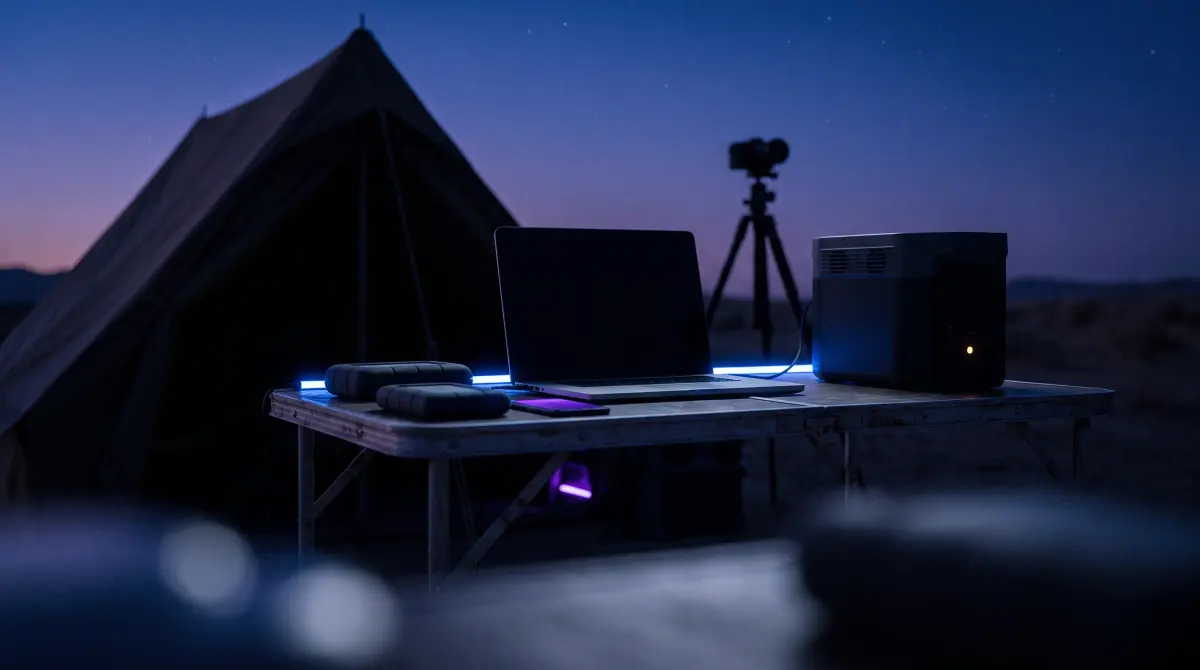
Documentary means many cards over a long stretch, often in remote places with limited time and limited drives. The discipline that keeps the footage safe: verify every offload, keep redundant 3-2-1 copies, and organize by date and source so editorial is still sane months later.
Copsy automates the hard part on a Mac. Plug in an SD, CFexpress or camera card and it auto-detects the source, copies to an external drive and optionally to Google Drive or Dropbox in the same offload, verifies every file with ASC-MHL checksums, organizes by date and source, and pings you on Telegram when it's done — free, no card limit, no signup.
Download Copsy for Mac → · macOS 13+ · no account needed
Why documentary backup is its own problem
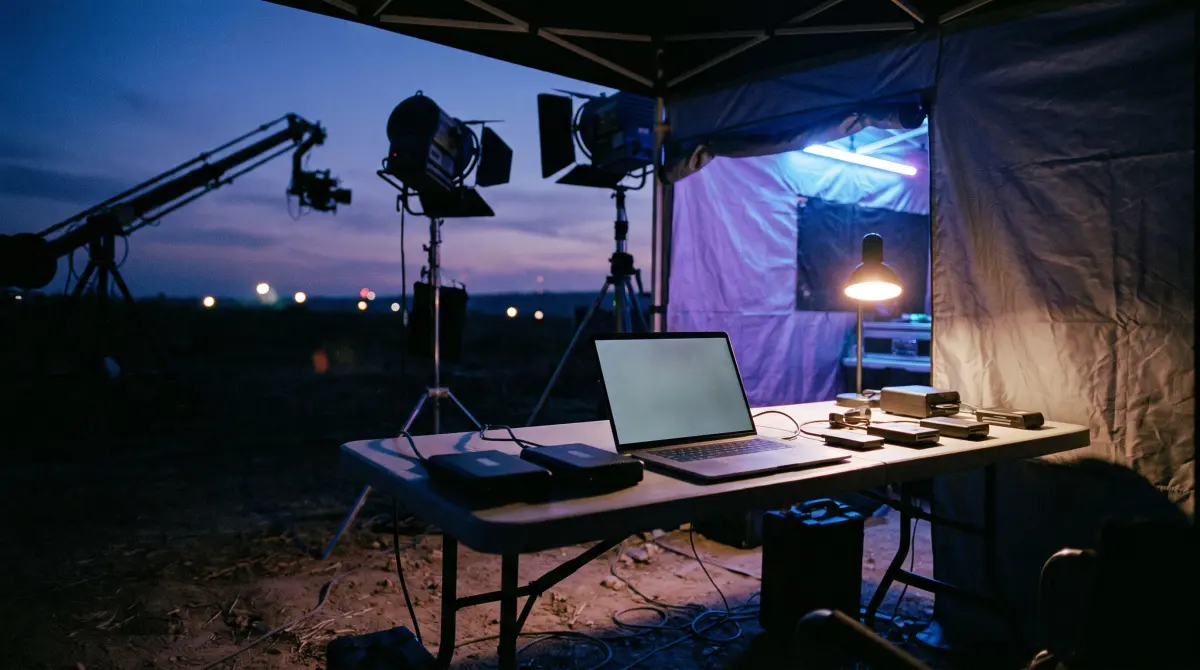
Narrative shoots are dense but bounded — a known crew and a DIT cart with redundant RAID. Documentary runs the other way. A small kit, a long shooting window, locations with no power and no internet, and a card count that quietly climbs into the hundreds across a project. The footage you grab on day three of a remote trip might not be touched in editorial for a year, and there is no reshoot for a moment that already happened.
So the risk profile is different. The threats aren't fancy: a card formatted before it was actually backed up, a "copy" that finished but silently dropped a file, two clips from two cameras that landed in the same unlabeled folder, or a single drive that dies in a backpack with the only copy on it. Every one of these is preventable with a small, repeatable end-of-day routine. That routine is exactly what Copsy turns into a few clicks.
The three rules that actually keep doc footage safe
Strip away the gear talk and a reliable documentary backup workflow comes down to three habits you repeat for every single card:
- Verify before you wipe. A copy isn't a backup until it's verified. Never reformat a card on the assumption that "it looked like it finished." Copsy checksums every file with ASC-MHL so you have proof the copy is bit-for-bit identical before the card goes back in the camera.
- Stay redundant on the road. One drive is one point of failure. Keep at least two copies on different media, and get a copy off-site whenever you have signal. Copsy writes to a drive and to Google Drive or Dropbox in the same offload, so the cloud copy happens during the offload instead of "later."
- Organize the same way every day. Consistency now is sanity in the edit. Copsy organizes by date and by detected source automatically, so a six-month shoot has one predictable structure instead of a folder graveyard.
The field workflow, step by step
This is the loop to run at the end of every shooting day (or whenever a card fills). It takes minutes of your attention and then runs unattended.
- Stage your cards. Pull every card from every body and recorder, and keep them physically separated from empties so a full card never gets mistaken for a blank one.
- Plug in and let Copsy detect. Insert the card and Copsy identifies it by content (Sony, ARRI, RED, Blackmagic, Canon, drones and audio recorders are recognized automatically), so the source is labeled correctly without you typing it.
- Pick redundant destinations. Choose your primary external drive, and add a second drive or a Google Drive / Dropbox cloud copy so the offload writes more than one copy at once.
- Let it copy, verify and organize. Copsy copies the card, organizes the files by date and source, and verifies every file with ASC-MHL checksums. Walk away and prep the next card.
- Wait for the verified-done ping. A Telegram message tells you the card finished and verified — nothing dropped, nothing corrupted.
- Only now, reformat. With proof the footage exists verified in two places, format the card in-camera and send it back to the kit for tomorrow.
Staying redundant when you're off the grid
Most documentary backups happen somewhere with weak or no internet, so the "off-site" copy is the part that quietly gets skipped — which is exactly when a backpack-and-one-drive setup fails hardest. A practical pattern:
- Always make the two local copies first. Card → primary drive → second drive, both verified. That alone gets you redundant before you've left the location.
- Keep the two drives apart. Different bags, ideally different people, so one lost or stolen backpack never takes both copies.
- Push the cloud copy when signal returns. When you reach a hotel, café or anywhere with bandwidth, run the offload with a Google Drive or Dropbox destination added so Copsy creates the off-site copy in the same offload, which turns your two-copy field setup into a real 3-2-1.
Organize once so editorial survives the wait
On a long documentary, the people cutting the film often weren't on location and won't see the footage until months after it was shot. If every card landed in a differently-named folder, that gap becomes hours of detective work. Keeping a single, predictable structure, grouped by date and by source, means a clip can be traced back to "this camera, this day" instantly, and an assistant editor can ingest without a phone call to the field.
Copsy does this organization as it copies, so the discipline doesn't depend on you remembering a naming convention at midnight on day twelve. The footage arrives sorted by date and by detected source the same way every single time.
What Copsy honestly does not do
Copsy is deliberately focused on the offload-verify-organize loop, and it's worth being clear about the edges:
- macOS only. There is no Windows version. If your doc kit runs Windows in the field, Copsy isn't your tool.
- No LTO / LTFS. Copsy backs up to drives and to Google Drive or Dropbox. If your archive plan ends on LTO tape, you'll still need a separate tape step.
- No NLE panel integrations. Copsy doesn't plug into Premiere, Resolve or Avid as a panel. It gets verified, organized footage onto your media — handoff to editorial happens from there.
Within that scope, the things documentary shooters rely on every day — detect the card, copy it redundantly, verify it, organize it, and tell you when it's safe to wipe — are exactly what it automates, for free.
Frequently asked questions
Offload your next card for free
Copsy — a free Mac camera-offload app. Verified copies to a drive and the cloud, nothing lost.
Download Copsy for Mac