The media offload checklist every DIT should follow
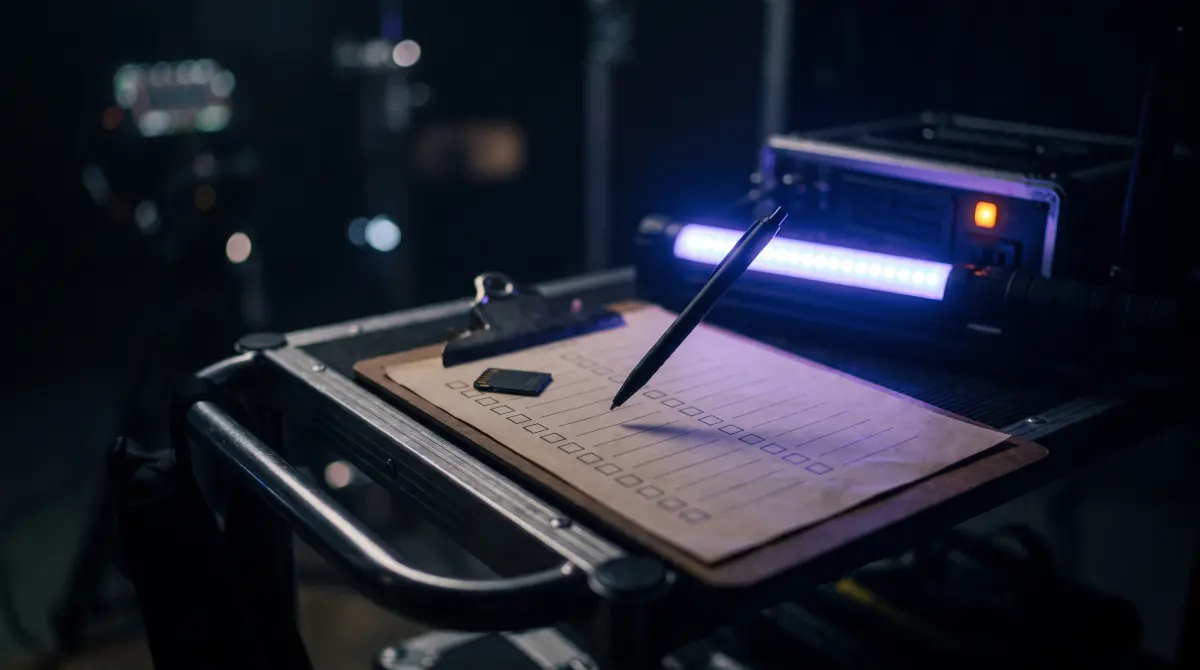
Run the same six steps on every card: detect → copy to two destinations → verify with ASC-MHL → organize by date and source → label → confirm before format. Do them in that order, every time, and footage doesn't go missing.
Copsy — a free Mac camera-offload app — automates most of this list: it auto-detects the card, copies to a drive and Google Drive or Dropbox in the same offload, verifies every file, organizes by date and source, and pings you on Telegram when it's done. You still do the human bits: label the card and confirm before you format.
Download Copsy for Mac → · macOS 13+ · no account needed
Print this, tape it to your cart, or just memorize it. The whole point of an offload checklist is that you do it identically when you're tired, rushed, and on the fourth card of the day. That's exactly when footage gets lost. Below is the checklist, then what each step actually means and where Copsy does the work for you.
The footage backup checklist at a glance
Run this on every card, in order
- ☐ Detect & identify the card — confirm the reader sees it and you know which camera/source it is. Don't touch the files yet.
- ☐ Copy to two destinations — a working drive plus a second drive or cloud, ideally in the same offload.
- ☐ Verify with ASC-MHL — checksum every file; wait for a green pass before trusting the copy.
- ☐ Organize by shoot date and source/camera into a consistent folder structure.
- ☐ Label the card as full and the drive clearly so nobody wipes or re-uses it.
- ☐ Confirm before format — only format once two copies are verified and you've seen the files open.
1. Detect & identify the card
Insert the card and let your offload tool read it before you do anything else. Don't drag, rename, or delete a single file yet, and don't let the OS "tidy up" or eject mid-write. The goal here is just to confirm the card mounts cleanly and you know what it is: A-cam CFexpress, drone microSD, the sound mixer's card, the gimbal op's SSD. Misidentifying a card is how the wrong footage gets formatted.
Copsy auto-detects cards by content (Sony, ARRI, Blackmagic/BMD, RED, Canon, drones, audio) and reads any card or volume you plug in, so it recognizes the source instead of making you guess from a generic folder name.
2. Copy to two destinations
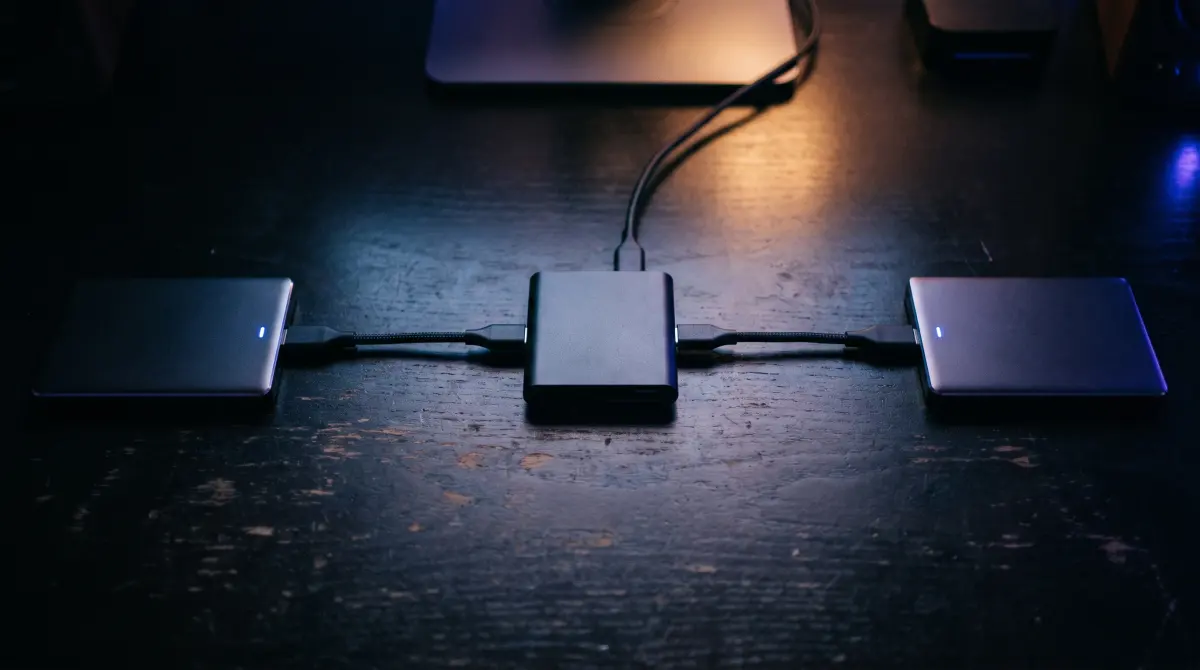
This is the rule that matters most: one copy is not a backup. A single drive can fail, get dropped, get full, or get accidentally erased. The on-set standard is at least two verified copies on separate media before the card is formatted. If you can make the third (a cloud or off-site copy), even better.
The slow way is copying to drive one, waiting, then copying drive two — that reads the card twice. Copsy copies to an external drive and optionally Google Drive or Dropbox in the same offload during the same offload, so the cloud copy starts as soon as the drive copy is verified, off a single card read.
Two-destination quick rules
- Use separate physical media — two folders on the same drive is one copy, not two.
- Keep the two copies physically apart when you can (one travels, one stays).
- A cloud copy counts as your off-site copy, but only after it verifies.
3. Verify every file with ASC-MHL checksums
A file showing up in Finder is not proof it copied correctly. Verification compares a checksum (fingerprint) of each source file to the copy; if they match, the file is bit-for-bit identical with nothing dropped or corrupted. ASC-MHL is the standardized, time-stamped manifest format used on film sets and for delivery — it records every checksum so the copy is auditable later.
Copsy verifies every copied file with ASC-MHL checksums automatically as part of the offload. Don't format anything until verification passes — a green verify is the only real evidence the day is safe. (If you want the deeper background, see what ASC-MHL is and how to verify a file copy on Mac.)
4. Organize by date and source
Dumping cards into a single loose folder is a future headache for the editor, and for you, when a producer asks for "the drone stuff from day two." File footage into a predictable structure: shoot date, then source/camera, then card. Consistency beats clever, so pick a scheme and never break it.
Copsy organizes copied footage by date and source as it goes, so the destination is already laid out sensibly the moment the offload finishes. (More on a clean scheme: how to organize footage by date.)
5. Label the card and the drive
The cheapest insurance on set is a piece of tape. The second a card is offloaded and verified, flip its write-lock or mark it FULL so it can't go back in a camera and get overwritten. Label the destination drive with the project, date range, and "verified" so nobody on the crew reformats it for space. Most "lost footage" stories are really "someone re-used the wrong card" stories.
6. Confirm — then, and only then, format
Formatting is irreversible, so it's the last step and it has gates. Before a card gets wiped: it must be copied to two destinations, both must have verified, and you should have opened a clip or two to eyeball that they play. Format in-camera, not in Finder. If anything about a copy is uncertain, a flaky drive, an interrupted verify, a weird file count, keep the card. Cards are cheap; a day of footage is not.
What Copsy does for you vs. what you still do
| Checklist step | Copsy (free) | DaVinci Resolve Clone Tool | YoYotta |
|---|---|---|---|
| Price | FREE | FREE (in Resolve) | around $110/yr PAID (free YoYottaID tier) |
| 1. Auto-detect & identify card | ✓ by content | manual pick | manual |
| 2. Copy to two destinations | ✓ drive + cloud, parallel | ✓ multiple drives | ✓ |
| 3. Verify (checksum) | ✓ ASC-MHL | ✓ xxHash64 / MD5 | ✓ ASC-MHL |
| 4. Organize by date & source | ✓ automatic | — | ✓ |
| Copy straight to Drive / Dropbox | ✓ | — | — |
| Telegram "done & verified" ping | ✓ | — | — |
| Standalone app (no editor needed) | ✓ | opens in Resolve | ✓ |
| 5–6. Label & confirm before format | Always you — no tool should format your card for you. | ||
Pricing and features change; figures above were last verified in June 2026. The DaVinci Resolve Clone Tool is genuinely free and verifies copies, but it has no auto-detect, no parallel cloud, no auto-organize, no Telegram, and you must open Resolve to use it. YoYotta is a powerful paid DIT app (it also adds LTO/LTFS, which Copsy doesn't). Check each vendor's site for current details.
Frequently asked questions
Run the checklist on autopilot
Copsy — a free Mac camera-offload app. Detect, copy to a drive and the cloud, and verify every file — automatically.
Download Copsy for Mac