How to copy an SD card to two drives on Mac — and verify it
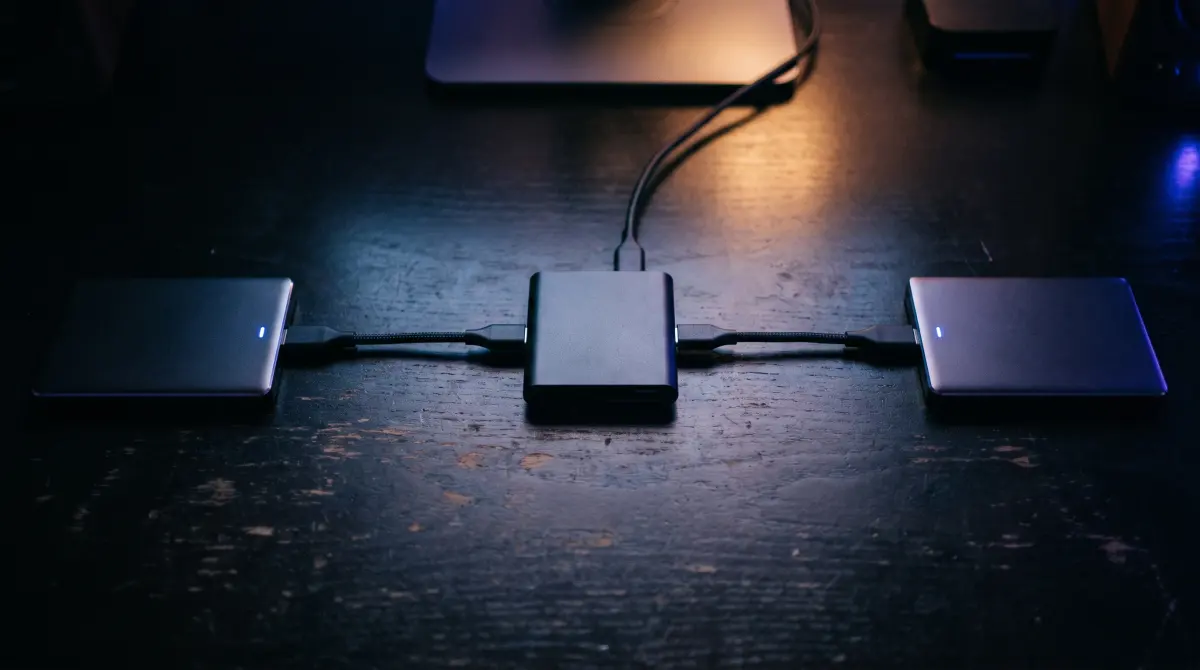
One drive is not a backup. If your only copy of a shoot lives on a single external drive, you're one drop, dead disk, or corrupted file away from losing it. The fix is simple: copy your card to two destinations at once, then verify both before you format.
Copsy is a free Mac camera-offload app that does exactly this. Plug in the card, pick a drive and a second target (another drive, or Google Drive / Dropbox), and Copsy copies to both in the same offload, organizes by date and source, and verifies every file with ASC-MHL checksums. Free, no card limit, no signup.
Download Copsy for Mac → · macOS 13+ · no account needed
Why one drive isn't a backup
On set or back at the desk, the most dangerous moment is the one right before you format the card. If everything you shot exists in one place (a single SSD, a single hard drive), then that drive is your footage. There is no backup. There's just an original that happens to be on a disk instead of a card.
The industry shorthand for getting this right is the 3-2-1 rule: at least 3 copies of your data, on 2 different devices or media, with 1 copy offsite. You don't need to hit all of that on the cart. But you absolutely should have two verified copies before the card gets wiped. A drive plus the cloud is the easiest way to do that, because the second copy is automatically offsite.
The three things that kill single-drive footage
- Hardware failure. Spinning drives and SSDs both die — sometimes brand new, sometimes with no warning.
- Physical accidents. A drive knocked off a cart or left in a hot car is gone, footage and all.
- Silent corruption. A file can finish copying and still be wrong. Without a checksum, you won't know until you try to use it.
The right way: copy footage to multiple drives at once
Dragging a card into Finder, waiting, then dragging it into a second drive is slow and unverified. It's also where most people give up and just keep one copy. The better workflow is an offload app that writes to two or more destinations in the same pass and checksums each one.
Copsy is built around that idea. You pick a primary external drive and a second destination, and Copsy fills both from one offload, verifying each copy on its own. The second destination can be another physical drive — mirrored either straight from the card or from the copy Copsy just verified on the first drive, whichever you pick in Settings — or a cloud (Google Drive or Dropbox), which uploads in the background as soon as the drive copy is verified. Either way the offsite copy happens inside the same offload, not as a separate chore later.
How to copy a card to two destinations with Copsy (step by step)
- Plug in the card. Insert the SD, CFexpress or camera card. Copsy detects it by content and recognizes the source (Sony, ARRI, Blackmagic/BMD, RED, Canon, drones, audio — and it reads any card or volume).
- Choose two destinations. Set an external drive as the primary target, then add a second one — another external drive, or Google Drive or Dropbox. Copsy fills both from that one offload.
- Copy and verify. Start the offload. Copsy copies the footage, organizes it by date and source, and verifies every file on each destination with ASC-MHL checksums — so both copies are bit-for-bit identical to the card.
- Confirm before you wipe. Wait for the verified confirmation (Copsy can ping you on Telegram when it's done). Only format the card once you have two verified copies — never before.
Tools that copy to multiple drives on Mac — honest comparison
You have a few real options for multi-destination, verified offloads on a Mac. Here's how Copsy compares to two genuinely good free/cheap ones.
| Feature | Copsy | DaVinci Resolve Clone Tool | YoYotta |
|---|---|---|---|
| Price | FREE | FREE (in Resolve) | around $110/yr full PAID (free ID tier) |
| Checksum verification | ✓ ASC-MHL | ✓ xxHash64 / MD5 | ✓ ASC-MHL |
| Copy to a drive AND cloud (Drive/Dropbox) in the same offload | ✓ | drives only | drives / LTO |
| Auto-detect card type (Sony/ARRI/RED/BMD/Canon/drone/audio) | ✓ | — | partial |
| Auto-organize by date + source | ✓ | — | ✓ |
| Standalone (no other app to open) | ✓ | open Resolve | ✓ |
| Telegram notification when done | ✓ | — | — |
| Platform | macOS 13+ | macOS / Windows | macOS |
Pricing and features change — figures above were last verified in June 2026. The DaVinci Resolve Clone Tool is genuinely free and verifies with xxHash64, but it doesn't auto-detect cards, copy to the cloud in the same offload, auto-organize, or notify you, and you have to open Resolve. YoYotta is a powerful paid DIT app (LTO/LTFS) with a limited free "YoYottaID" tier. Check each vendor's site for current details.
Drive + cloud is the easiest two-copy setup
If you only have one external drive on hand, you can still hit "two copies, one offsite" the moment the card is offloaded: copy to the drive and to Google Drive or Dropbox in the same offload. That covers two of the three failure modes above instantly. If the drive dies or gets dropped, the cloud copy survives, and vice versa.
This applies just as much to modern non-card workflows: an iPhone 15/16 Pro recording Apple ProRes to an external USB-C SSD, an Atomos Ninja recorder writing ProRes/BRAW to an SSD or CFast, or an Insta360 microSD full of raw clips that still need stitching. Copsy reads the SSD or card the same way and gives you two verified copies before anything gets reused.
Before you format the card, you should have…
- Copy #1 on an external drive — verified with checksums.
- Copy #2 on a second drive or in the cloud — also verified.
- A confirmation that both passed verification (Copsy shows it and can ping you on Telegram).
Frequently asked questions
Two verified copies, one offload
Copsy — a free Mac camera-offload app. Copy your card to a drive and the cloud at once, verified with ASC-MHL. Nothing lost.
Download Copsy for Mac