How to recover corrupted footage
If footage is corrupted on a card, stop shooting to that card immediately, never let anything write back to it, make a byte-for-byte image of the whole card to a file, and run recovery software against the image — never the original. Recovery is sometimes possible and sometimes not, so set realistic expectations.
One honest note up front: Copsy is not recovery software and cannot un-corrupt a damaged file. Copsy is the prevention side — it makes ASC-MHL-verified copies so a bad card or a failed copy is caught before you format the original, not after.
Download Copsy for Mac → · macOS 13+ · no account needed
First, do no harm — the part most guides skip
Recovery-software pages jump straight to "download our tool and click Scan." The load-bearing advice comes before that, and getting it wrong is what permanently loses footage. Every write to a struggling card can overwrite the exact bytes you're trying to save. So the first response is about restraint, not action.
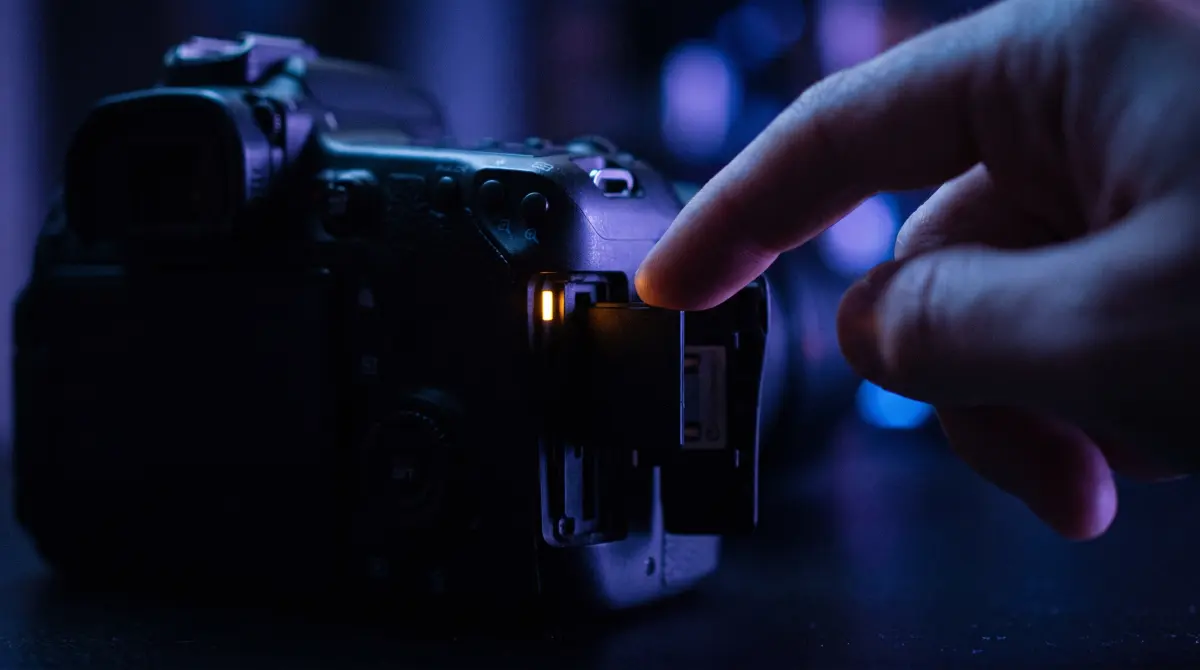
- Stop shooting to that card. Right now. Do not roll another take "just to test it." Power down the camera if you have to. The data you want is still on the card only until something writes over it.
- Do not let anything write back to the card. No formatting, no in-camera "repair," no "Do you want to fix this disk?" prompt on the Mac, no saving recovered files back onto the same card. Decline every repair offer until you have an image.
- If the camera still reads it, copy off the second slot. Many cameras record to two cards. If one slot is corrupt but the other mirror or backup card is clean, get that card off and verified first — that's often your real footage, intact.
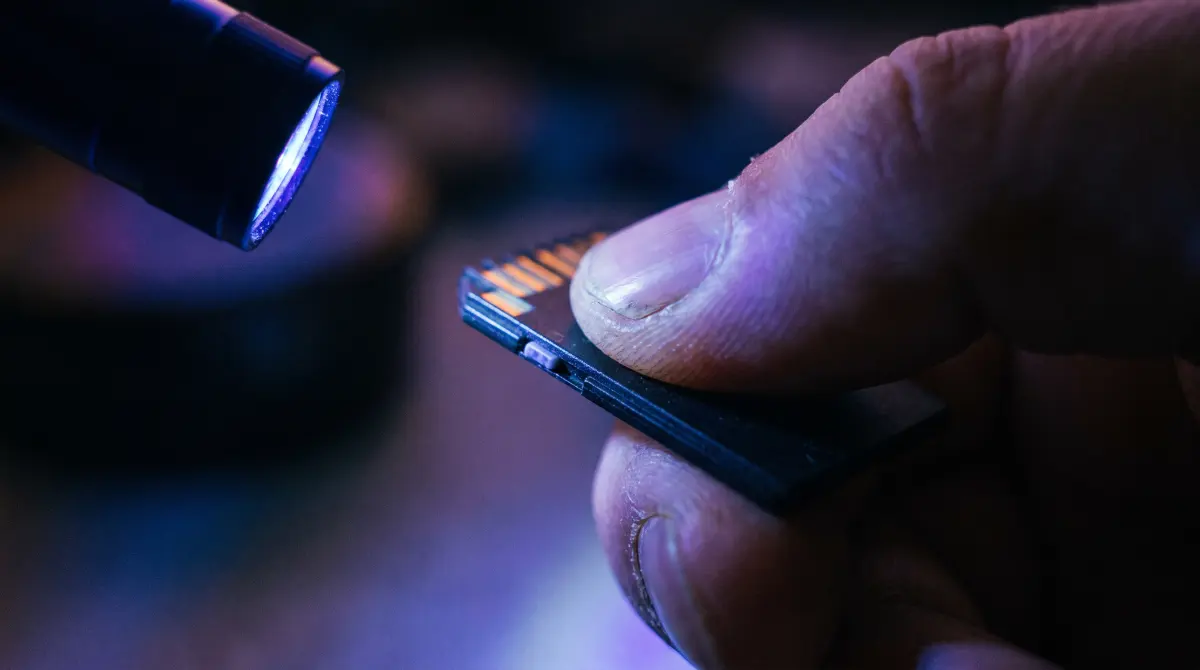
- Image the whole card to a file, and work from the image. Make a byte-for-byte disk image of the entire card (every sector, not just the visible files) and set the original aside. From here on, you only ever touch the image. The original card is your last-resort backup.
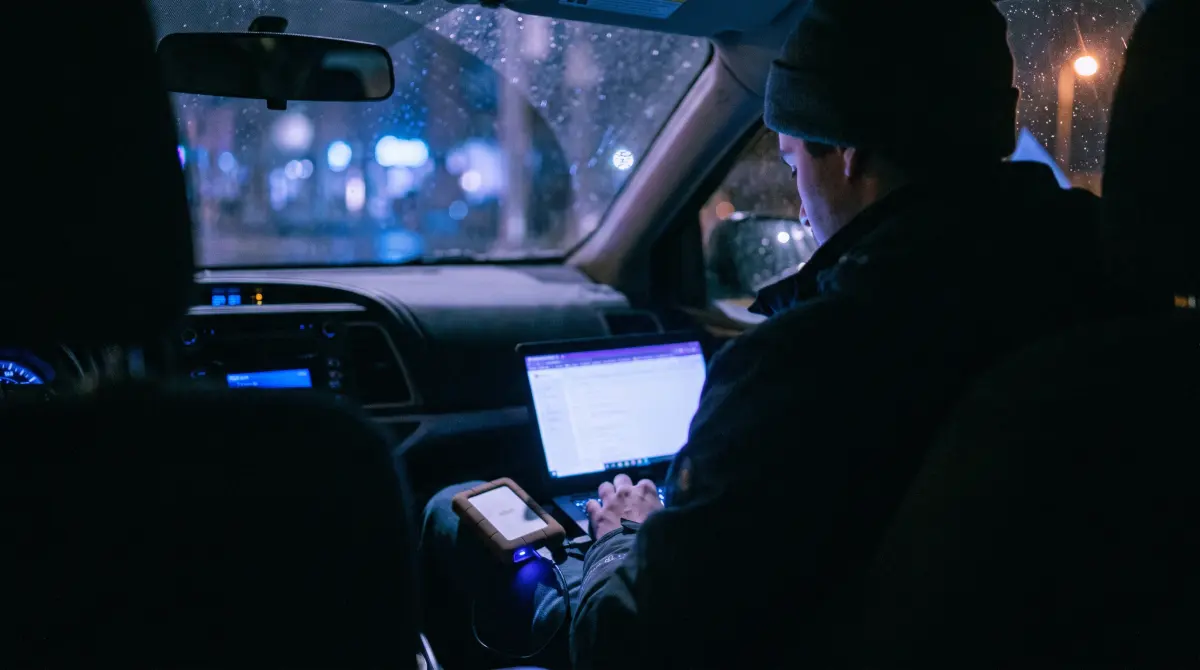
- Only then try recovery software — against the image. Point your recovery tool at the disk image file, not the card. If a scan fails or makes things worse, you still have a pristine copy to try again with a different tool. Run it on a Mac with plenty of free space for whatever it carves out.
Set realistic expectations
Some corruption is recoverable and some isn't, and no honest tool can promise otherwise. A card that simply has a damaged file system or a half-written clip often gives up most or all of its footage. A card with a failing controller, dead flash cells, or physical damage may return nothing — or files that scrub but won't decode cleanly. Carving large video files (especially fragmented 4K/RAW) is harder than recovering photos, and a "recovered" clip can still have unplayable gaps. Treat anything you get back as a bonus, not a guarantee, and verify it plays end to end before you trust it.
If the footage is irreplaceable — a one-take event, a paid shoot you can't reshoot — consider a professional data-recovery lab before you run consumer tools. Each failed DIY attempt can reduce what a lab can rescue.
Where Copsy fits — and where it honestly doesn't
Let's be clear: Copsy will not recover or repair a corrupted clip. It is not recovery software. If you're reading this because footage is already damaged, Copsy can't un-damage it, and nobody should tell you otherwise.
What Copsy does is stop you from ever needing this page again. During an offload it copies your card to a drive (and optionally Google Drive or Dropbox) and verifies every file with ASC-MHL checksums — the same film-set verification standard used on professional deliveries. That verification is the part that matters here: it catches a copy that didn't land bit-for-bit, and it flags a dying or fake card while it's reading it — during the offload, before you format the original. So a card that's about to corrupt your footage gets caught while you still have a verified copy in hand.
The real fix is prevention
Recovery is the emergency room. The fix is not getting hurt. A verified offload — copy to a drive and a second copy to the cloud, then checksum every file with ASC-MHL before you reformat — means a bad card or a botched copy is caught while the footage still exists in two good places.
- Copy each card to a drive and Google Drive or Dropbox, in the same offload, from the same offload.
- Verify every file with ASC-MHL checksums so you know it copied bit-for-bit.
- Never reformat a card until both copies are verified.
- If Copsy can't read the card cleanly, it tells you — that's your dying-card early warning.
How a verified offload prevents the next disaster
- Plug in the card. Copsy detects it by content and recognizes the camera/source.
- Pick destinations. An external drive, plus optionally Google Drive or Dropbox — copied in the same offload.
- Copsy verifies as it copies. Every file gets an ASC-MHL checksum, so a copy that didn't land bit-for-bit — or a card that's failing mid-read — gets flagged, not silently trusted.
- Format only after it's verified. Two good copies, checksums matched, Telegram ping when it's done. Now reformatting is safe.
Frequently asked questions
Offload your next card for free
Copsy — a free Mac camera-offload app. Verified copies to a drive and the cloud, nothing lost.
Download Copsy for Mac