Fix a camera card that's not readable on Mac
Don't click Initialize — it erases the card. When your Mac says "The disk you inserted was not readable by this computer," click Ignore, then fix it in order: check the SD lock switch, try a different reader, cable and USB port, try a different Mac, and only then run Disk Utility's First Aid. Once the card mounts, offload and verify it before you ever format.
Most "not readable" cards are a bad reader or a flipped lock switch, not dead footage. The dangerous move is reformatting before you've confirmed a good copy exists.
Download Copsy for Mac → · macOS 13+ · no account needed
What "The disk you inserted was not readable" actually means
The exact dialog reads: "The disk you inserted was not readable by this computer." with three buttons — Initialize…, Ignore, and Eject. It does not mean your footage is gone. It means macOS detected a disk on the port but couldn't mount its file system. For a camera card that comes down to four causes, in order of how often they're the culprit:
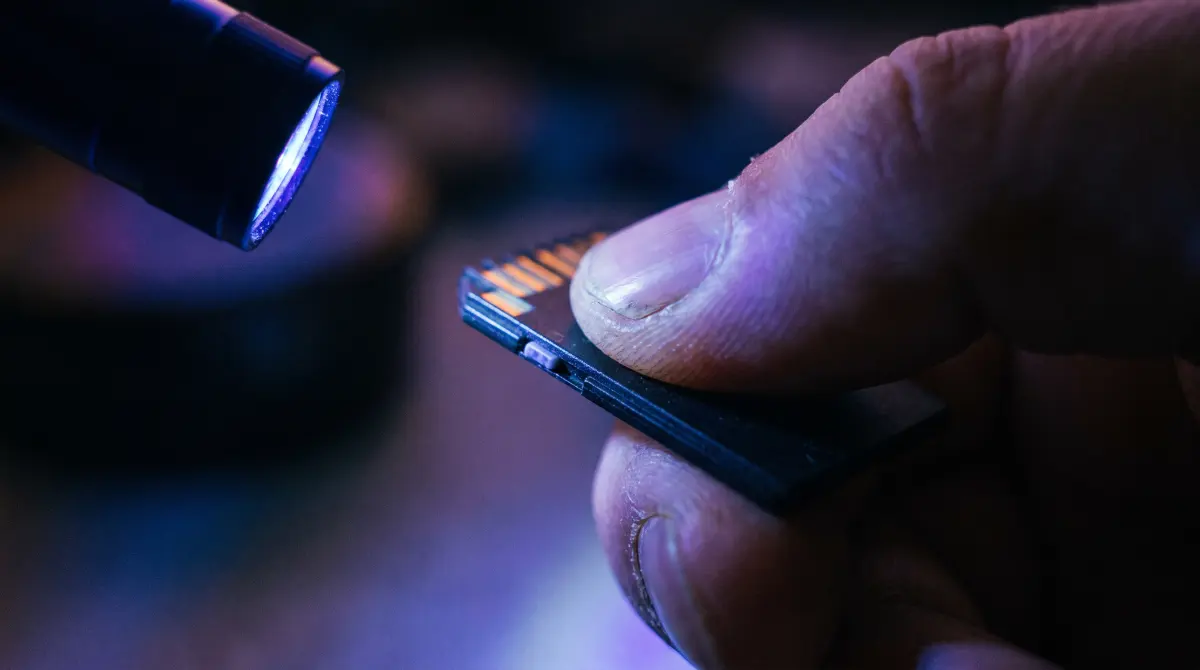
- The SD lock switch. Full-size SD and many adapters have a tiny physical write-protect slider on the left edge. If it slipped down toward "Lock," the card can read-only or fail to mount cleanly. This is the single most common false alarm.
- A flaky reader, cable or port. Cheap or worn card readers, a marginal USB-C cable, or a tired port fail far more often than the card itself. This is the second-most-likely cause and the easiest to rule out.
- A file-system hiccup. exFAT (the format most CFexpress and large SD cards use) can pick up minor directory errors if a card was pulled mid-write or the camera lost power. These are usually repairable without erasing.
- Real corruption. Genuine physical or logical damage to the card. Less common than the three above, but the reason you never reformat before you've confirmed a backup.
Before you touch anything: do NOT click Initialize or Erase
Initialize… opens Disk Utility to erase and reformat the card — that wipes every clip on it. Eject just dismounts without helping. If the card still holds footage you haven't backed up, click Ignore and leave the card connected. Reformatting an unreadable card is the one mistake that turns a recoverable problem into lost footage.
The fix, in order
Run these checks top to bottom and stop as soon as the card mounts. They go from "costs nothing, fixes most cases" to "last resort."
- Click Ignore, not Initialize. Dismiss the dialog without erasing. The card stays connected.
- Check the SD lock switch. Eject, look at the left edge of the card (and any SD-to-CFexpress or microSD adapter), slide the write-protect switch up toward the contacts (unlocked), and reinsert.
- Swap the reader and cable. Try a different card reader and a known-good cable. Built-in slots and bus-powered readers fail quietly — a second reader rules this out fast.
- Try a different USB port. Plug directly into the Mac, not through a hub or dock, and try another port.
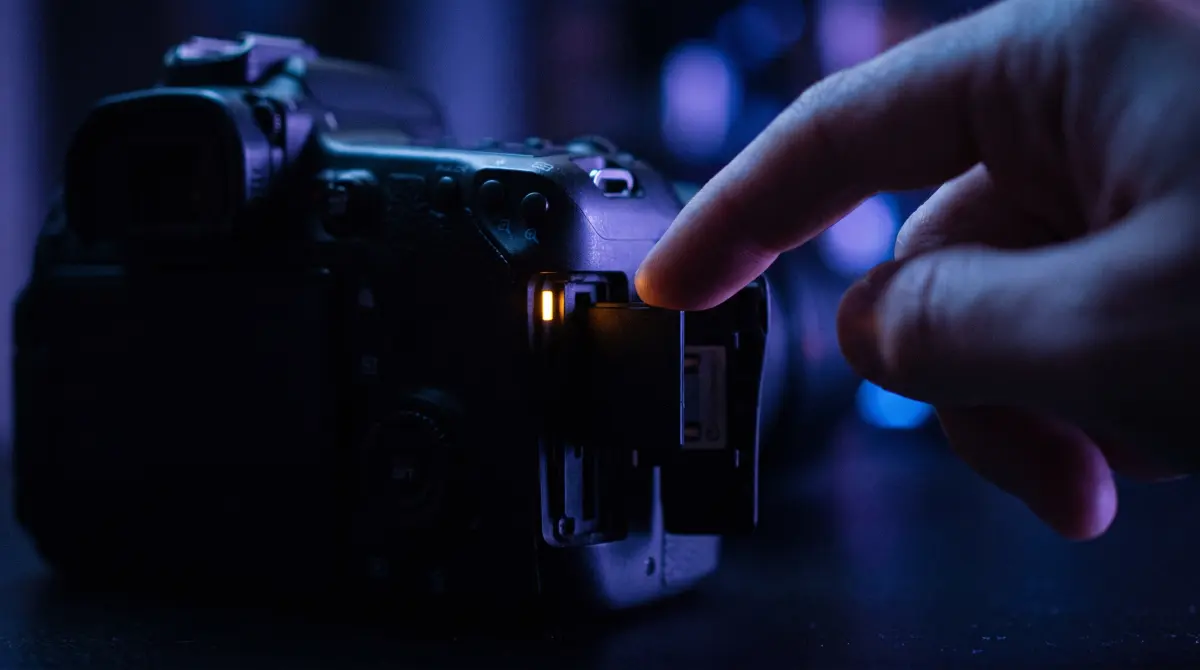
- Try a different Mac (or computer). If the card mounts elsewhere, the problem was the reader, port or driver on the first machine — and you can offload from there immediately.
- Run Disk Utility First Aid. Open Applications → Utilities → Disk Utility, click View → Show All Devices, select the card's device, and click First Aid → Run. First Aid repairs minor file-system errors and does not erase the card. This is the only Disk Utility action that's safe to run on footage you haven't backed up.
- If it still won't mount, go to recovery — not reformat. A card that fails every step above likely needs dedicated recovery software to read around the damage. See recovering corrupted footage. Reformatting at this point destroys your best chance of getting the clips back.
exFAT cards and CFexpress: a couple of quirks
Most modern high-capacity cards (CFexpress, large SD, many V90 cards) ship formatted as exFAT, which macOS reads natively. Two things to know:
- exFAT is fragile mid-write. Pulling a card while the camera is still flushing buffers — or a battery dying mid-clip — is the classic way to get a "not readable" exFAT card. First Aid usually fixes these.
- The lock switch can outrank the format. Even a perfectly healthy exFAT card reads as a problem if the physical write-protect switch is flipped. Always check the switch before assuming corruption.
If First Aid reports it repaired the volume, eject and reinsert — the card should now mount normally.
Once it mounts: offload and verify before you format
This is the step people skip, and it's the one that actually protects the footage. The moment the card mounts again — whether after a switch flip, a new reader, or a First Aid repair — get a verified copy off it before you reuse or reformat it. A card that just threw a "not readable" error is a card that may be on its way out, so a plain Finder drag isn't enough: you want every file checksum-verified.
That's where Copsy fits. It's a free Mac app made by a working DIT that, the instant the card mounts, auto-detects it (Sony, ARRI, RED, Blackmagic, Canon, drones, audio recorders), copies the footage to an external drive — and optionally Google Drive or Dropbox in the same offload — and verifies every file with ASC-MHL checksums. If a file copied wrong because the card is failing, the checksum catches it, so you never format on top of a bad backup.
Be honest about what Copsy does — and doesn't
Copsy does not repair a damaged card or file system, and it can't read a card that won't mount at all. Its job is prevention: once the card mounts, it gets a complete, ASC-MHL-verified copy off it so a bad copy or a dying card is caught before you wipe anything. For a card that won't mount no matter what you try, you need recovery options, not Copsy.
How Copsy offloads a card the safe way
- Card mounts, Copsy detects it. It recognizes the camera/source by content the instant the volume appears.
- Pick destinations. An external drive, plus optionally Google Drive or Dropbox — copied in the same offload (one cloud at a time).
- Walk away. Copsy copies, organizes by date and source, and verifies every file with ASC-MHL checksums.
- Get the all-clear, then format. A Telegram message confirms it finished and verified. Only now is it safe to reformat the card — in your camera, not by clicking Initialize.
Frequently asked questions
Offload your next card for free
Copsy — a free Mac camera-offload app. Verified copies to a drive and the cloud, nothing lost.
Download Copsy for Mac