A media management workflow for filmmakers
A solid media management workflow is six repeatable steps: offload each card, verify it with ASC-MHL checksums, keep 3-2-1 redundancy, organize by date and source, track every card on a checklist, and hand off to editorial. Do them in order, every shoot, and you'll never lose a frame.
Copsy automates the heavy middle of that chain — offload, verify, parallel backup, and organize — for free on Mac. Plug in the card, walk away, get a Telegram ping when it's verified and done.
Download Copsy for Mac → · macOS 13+ · no account needed
Why a workflow matters
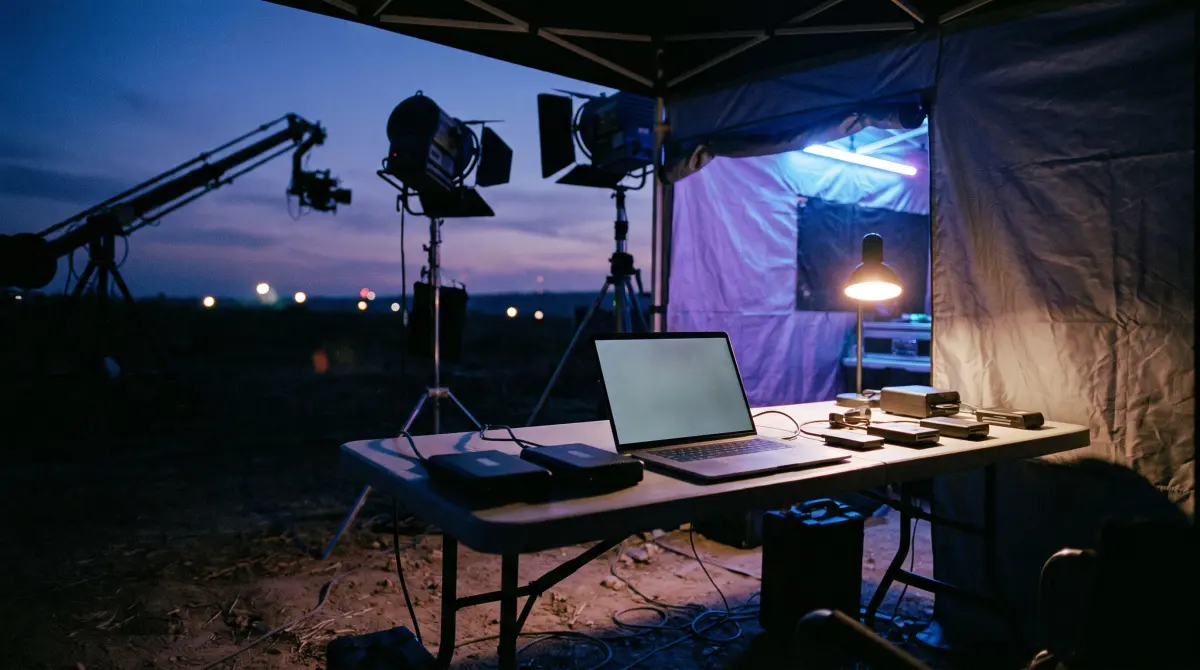
On set, footage is the one thing you can't reshoot for free. A card that gets formatted before it's backed up, or a copy that silently corrupted during transfer, is a problem money can't fix. The fix is a boring, repeatable workflow you run the same way every single shoot, so nothing depends on memory or mood at 2 a.m.
The chain below is the workflow most working DITs and shooters use, written plainly. Steps 1–4 are exactly what Copsy automates on a Mac. Steps 5–6 are habits and handoff that no app does for you. Run all six and your media is safe.
Stage 1 — Offload footage off the card
Get the footage off the card and onto an external drive as soon as the card is full or the setup wraps. Don't drag in Finder and hope. Finder won't tell you if a file copied wrong. Use a tool that copies the whole card structure, preserves original filenames, and reports any error.
- Copy the entire card (all folders), not just the obvious clips. Sidecar files, audio, and metadata live alongside the video.
- Keep original camera filenames and folder structures so timecode and metadata survive into the edit.
- Never format a card until the offload is verified and you have a second copy.
With Copsy you plug in the SD, CFexpress, camera, drone or audio card and it auto-detects the source by content (Sony, ARRI, RED, Blackmagic, Canon, drones, audio recorders) and starts the copy. Step-by-step: how to offload footage from a camera card.
Stage 2 — Verify with ASC-MHL checksums
Copying is not the same as copying correctly. Verification reads back every byte and compares a checksum against the original so you know the copy is bit-for-bit identical, with nothing dropped and nothing flipped. This is the step amateurs skip and the step that saves productions.
The professional standard is ASC-MHL (Media Hash List), the same verification approach used on film sets and for Netflix-style deliverables. It produces a manifest of every file and its hash that travels with the footage as proof it arrived intact. Learn the format: what is ASC-MHL?
Copsy verifies every copied file with ASC-MHL checksums automatically during the offload, and writes the manifest alongside your footage, so verifying is just part of the copy instead of an extra chore.
Stage 3 — Keep 3-2-1 redundancy
One copy is no copy. The industry rule is 3-2-1: at least three copies of your footage, on two different types of media, with one copy offsite. In the field that usually means the card (still unformatted), a primary drive, and a second copy on another drive or in the cloud.
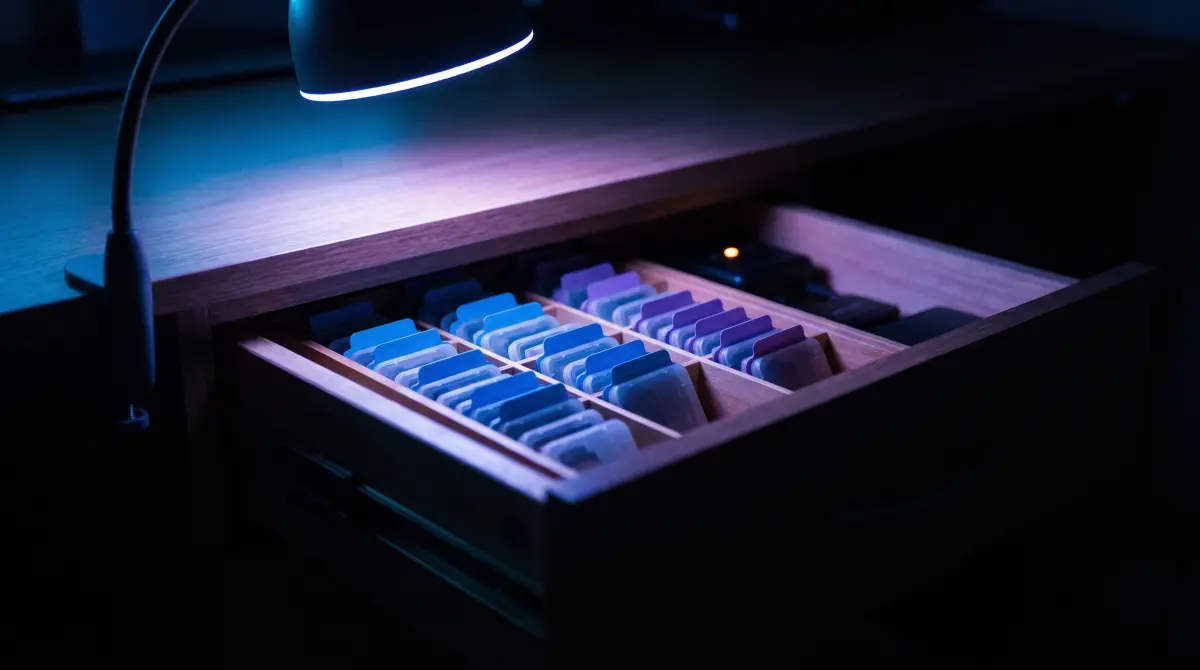
- Copy 1: the original camera card. Leave it unformatted until you have two verified backups.
- Copy 2: a primary external drive (your working set for the shoot).
- Copy 3: a second drive or a cloud copy, ideally kept somewhere else.
Copsy can write to an external drive and to Google Drive or Dropbox in the same offload, so one pass gives you a drive copy plus a cloud copy on top of the original card. Note one honest limit: Copsy writes to one cloud destination at a time (Drive or Dropbox), not both at once. The full rule, with on-set tips: 3-2-1 backup for video footage, and a field routine in how to back up footage on set.
Stage 4 — Organize by date and source
Footage you can't find is footage you've half-lost. Organize as you offload so that, months later, any clip is one obvious path away. The reliable structure is by shoot date, then by source (camera or recorder). For example, a folder per day, a subfolder per camera or card.
- Group by date first so each day's media is self-contained.
- Split by camera/source so multicam and audio stay separable.
- Preserve original filenames. Never bulk-rename, or you'll break timecode and metadata.
Copsy organizes copies by date and source automatically as it copies, so you skip the Finder drag-and-rename entirely. Folder-structure patterns: how to organize footage by date.
Stage 5 — Track every card with a checklist
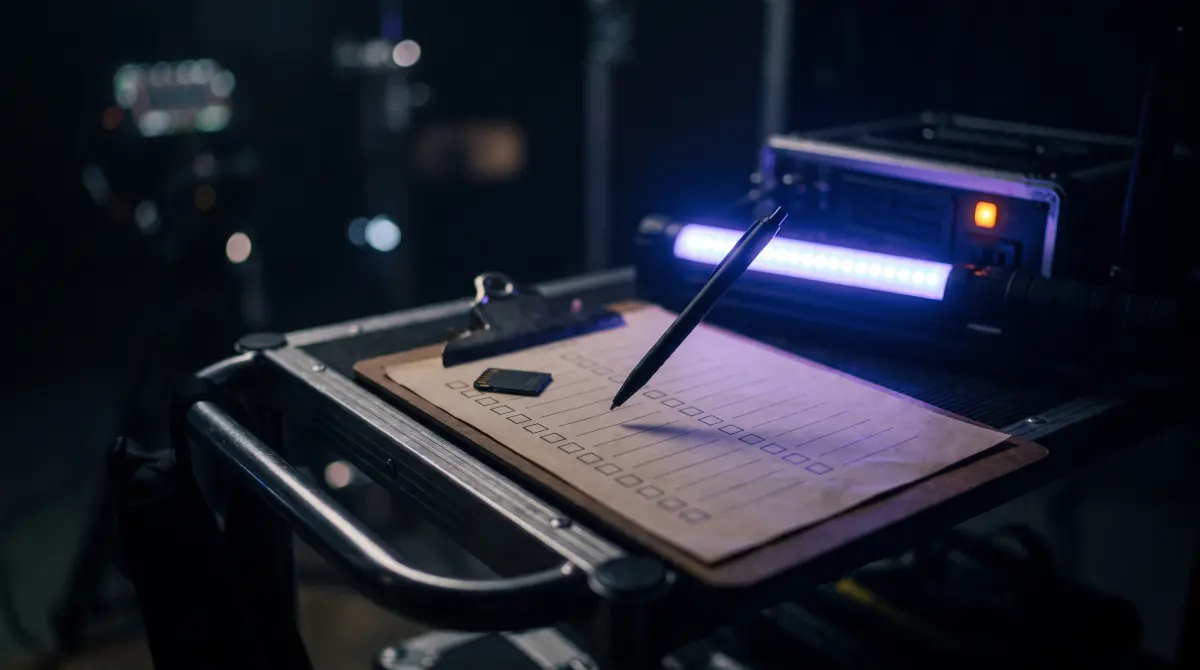
The single most common way footage is lost is a card that gets reused before anyone confirmed it was backed up. A checklist removes that risk: log each card as it comes in, mark it copied, verified, and backed up, and only then clear it for reformat.
- One row per card per shoot day: card ID, source, status (copied / verified / second copy / cleared).
- Only reformat a card once every box is checked.
- Note any errors immediately. A re-copy on set is cheap; a re-shoot is not.
Copsy's per-card detection and Telegram "done and verified" ping make the status easy to log, but the discipline of the list is on you. Use this: the media offload checklist.
Stage 6 — Hand off to editorial
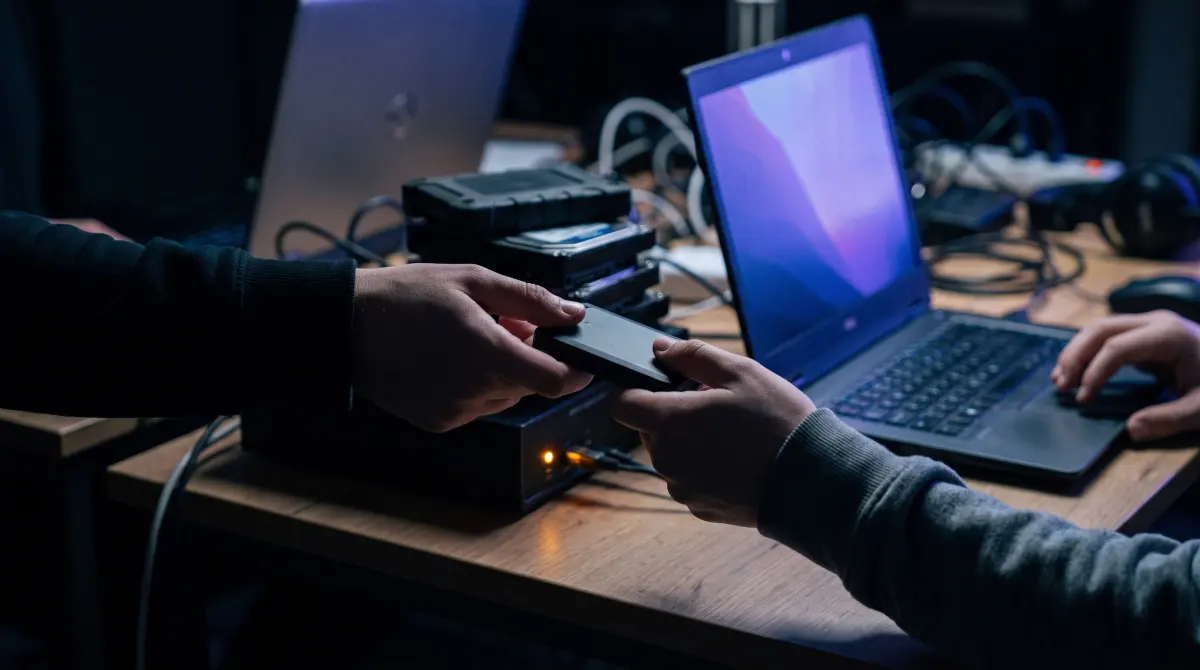
The last stage is getting the media, and the proof it's intact, to the editor or post house cleanly. Hand off the organized drives along with the ASC-MHL manifests so editorial can re-verify on their end and trust what they received. Keep your own offsite copy until post confirms they have everything.
- Deliver the date/source folder structure intact, with original filenames.
- Include the ASC-MHL manifests so the receiving side can verify against the same hashes.
- Don't wipe your last copy until editorial confirms a verified ingest.
The workflow in one box
- 1. Offload — copy the whole card to a drive, preserve filenames.
- 2. Verify — ASC-MHL checksums prove a bit-for-bit copy.
- 3. 3-2-1 — three copies, two media types, one offsite.
- 4. Organize — by date, then by source.
- 5. Track — a checklist; only reformat when cleared.
- 6. Hand off — deliver footage plus manifests to editorial.
Copsy automates steps 1–4 on Mac, for free. Steps 5–6 are habits no app can do for you.
Where Copsy fits — and what it doesn't do
Copsy is built for the offload-and-verify heart of this workflow. General disk-backup and sync tools like Carbon Copy Cloner (around $50) and ChronoSync (around $50) are excellent and do include checksum verification, but they're whole-disk backup/sync utilities, not camera-card-aware offload tools. They don't detect cards by content, don't write an ASC-MHL media manifest, and don't organize by shoot date and source. Copsy fills that gap, for free.
Honest limits, stated plainly: Copsy is macOS-only (no Windows), has no LTO/LTFS archiving, no NLE panel integration (no Premiere/Resolve panels), and writes to one cloud destination at a time. For deep DIT toolchains (LTO archiving, look management, NLE round-trips) a paid pro tool is still the right call. For "copy every card safely, verified, organized, with a cloud backup," Copsy does that part for nothing.
Pricing and features change. The figures above were last verified in June 2026. Check each vendor's site for current details.
Frequently asked questions
Offload your next card for free
Copsy — a free Mac camera-offload app. Verified copies to a drive and the cloud, nothing lost.
Download Copsy for Mac