How to back up a Nikon card on Mac (Z9 & Z8)
Copsy is a free Mac camera-offload app, and it's the simplest way to back up a Nikon Z9 or Z8 card on a Mac. Drop the CFexpress Type B card into a reader, and Copsy auto-detects it, copies your N-RAW, ProRes RAW and H.265 footage to an external drive and optionally to Google Drive or Dropbox in the same offload, organizes it by date and source, and verifies every file with ASC-MHL checksums before you ever format the card.
It's free, with no card limit and no signup, and it pings you on Telegram when the offload is done and verified.
Download Copsy for Mac → · macOS 13+ · no account needed
What the Z9 and Z8 record — and why verified copies matter
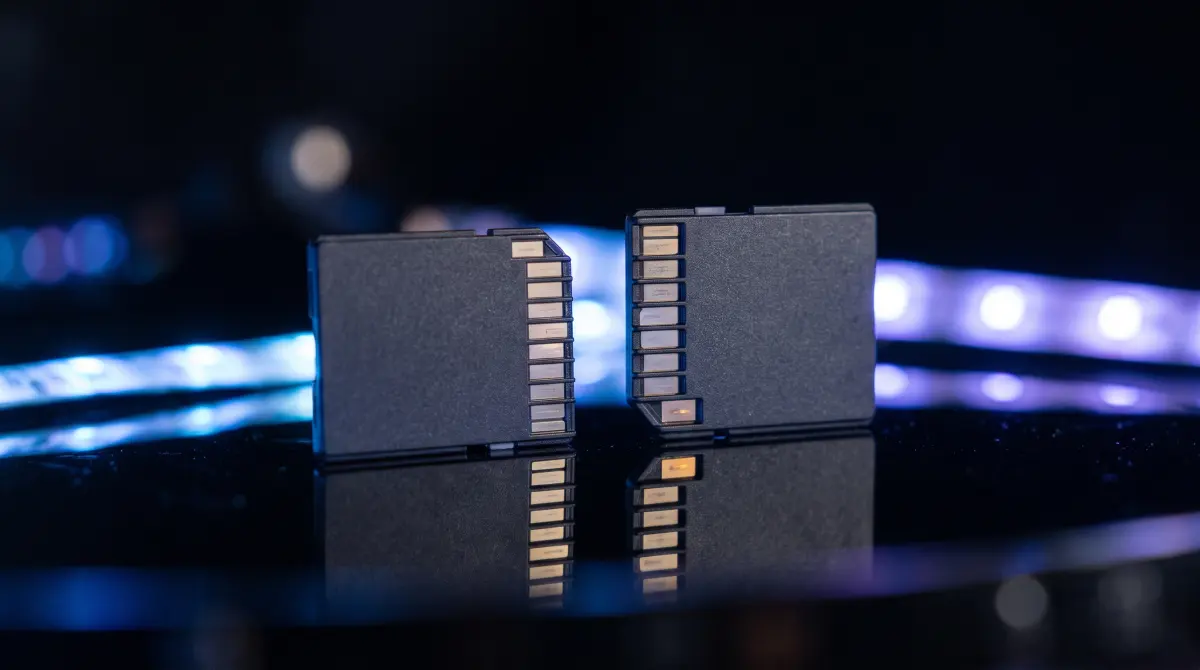
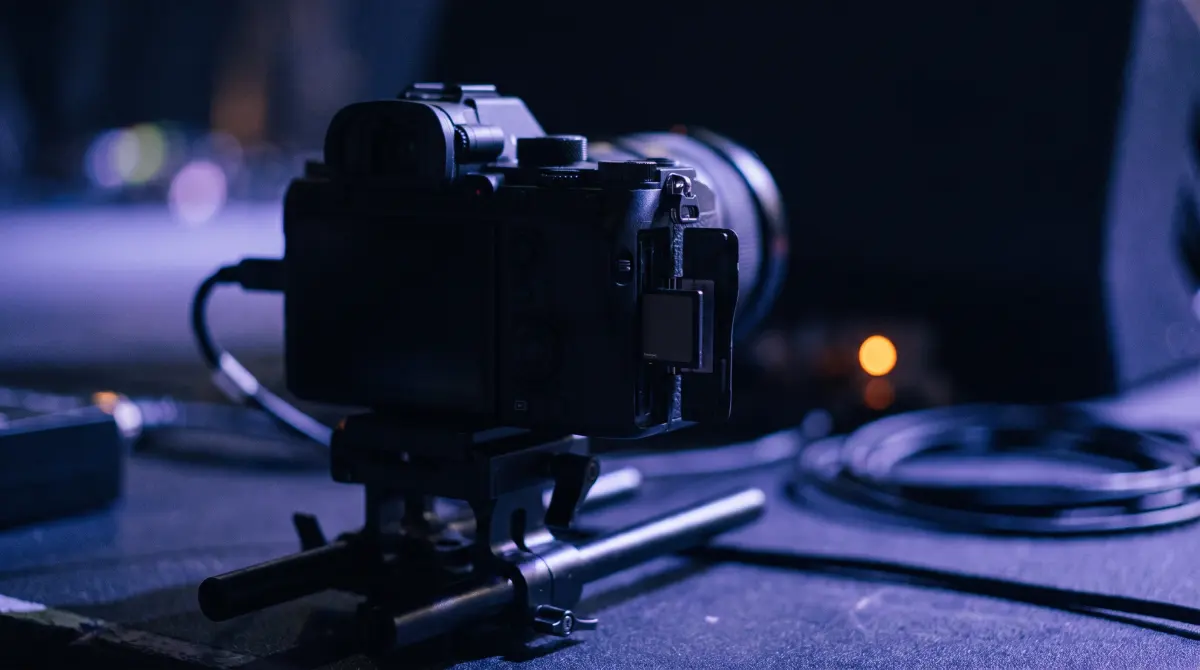
The Nikon Z9 and Z8 record internally to CFexpress Type B cards. Depending on how you've set the camera, that means N-RAW, ProRes RAW or H.265 clips. These are large, high-bitrate files, especially at 8K. A single card can hold a whole day of work, and N-RAW / ProRes RAW files in particular are unforgiving: a half-copied clip is a dead clip.
That's why a plain Finder drag is risky for camera media. Finder copies the bytes but doesn't prove the copy is bit-for-bit identical, and it won't tell you if one clip in a hundred came across corrupted. Copsy reads every file on the card, copies it, and then independently re-reads and checksums it to confirm nothing was lost. It's the same kind of verification professional offload tools use on film sets.
Quick note on Nikon's two slots
The Z9 has two CFexpress Type B slots; the Z8 pairs one CFexpress Type B slot with a UHS-II SD slot. Copsy doesn't care which slot a card came from. It reads whatever card your Mac can mount and copies the files it finds. Specifics like exact folder names and codecs vary by firmware and camera settings, so Copsy works at the file level rather than assuming a fixed layout.
How to offload a Nikon CFexpress card with Copsy
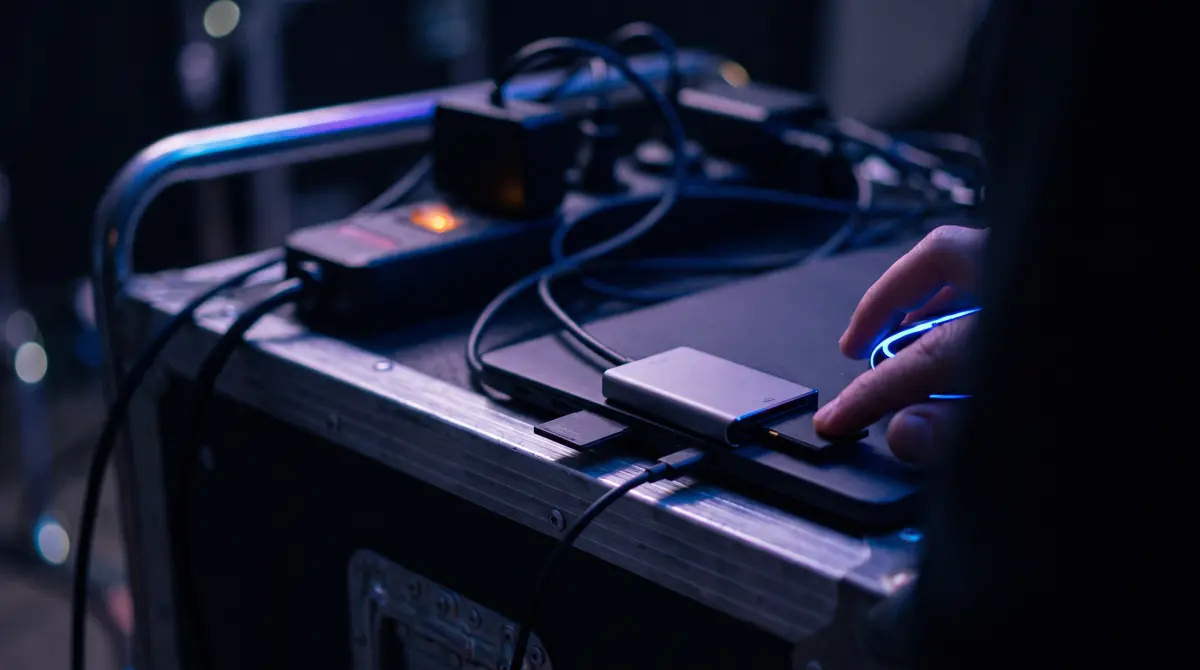
- Connect the card. Put the Nikon CFexpress Type B card into a CFexpress reader (USB 3.2 or faster is ideal) and plug it into your Mac. Copsy detects the card by its contents and recognizes it as camera media.
- Pick destinations. Choose an external SSD or drive as your backup target. Optionally add Google Drive or Dropbox so a cloud copy runs in the same offload.
- Copy and organize. Start the offload. Copsy copies every N-RAW, ProRes RAW and H.265 clip and organizes everything by date and source so you can find it later.
- Verify with ASC-MHL. Copsy re-reads each copied file and checks it against an ASC-MHL checksum (the film-set / Netflix-delivery verification standard) so you know each file copied bit-for-bit.
- Confirm, then format. Wait for the verified confirmation (and the optional Telegram ping). Only format the card in-camera once you have at least two good copies.
Copsy vs other ways to back up a Nikon card on Mac
| Method | Copsy | OffShoot (was Hedge) | Finder drag |
|---|---|---|---|
| Price | FREE | ~$169–$249 PAID | FREE |
| ASC-MHL checksum verification | ✓ built-in | ✓ | none |
| Auto-detects the card | ✓ | partial | — |
| Copies N-RAW / ProRes RAW / H.265 | ✓ any file | ✓ | ✓ (unverified) |
| Drive AND cloud (Drive/Dropbox) in the same offload | ✓ | drives only | — |
| Organizes by date + source | ✓ | ✓ | manual |
| Telegram notification when done | ✓ | — | — |
| Platform | macOS 13+ | macOS / Windows | macOS |
Pricing and features change — OffShoot figures were last verified in June 2026 (roughly $169 standard / $249 Pro). Check each vendor's site for current details.
Tips for big N-RAW / ProRes RAW cards
- Use a fast reader and drive. 8K N-RAW and ProRes RAW files are huge; a USB 3.2 CFexpress reader and an SSD destination keep the copy from becoming the bottleneck.
- Don't format until verified. Let Copsy finish the ASC-MHL verification first. A verified copy is the whole point. Then format in-camera, not on the Mac.
- Aim for two copies before wiping. A drive plus a cloud copy (Drive or Dropbox) gives you a second location, which is the start of a real 3-2-1 backup.
- Walk away. Turn on the Telegram ping so you can change batteries or set up the next shot while the card copies and verifies.
Frequently asked questions
Back up your next Nikon card for free
Copsy is a free Mac camera-offload app. Verified copies of your Z9 / Z8 footage to a drive and the cloud, nothing lost.
Download Copsy for Mac